Any input.
Any controller.

PadForge sits between your hardware and the game, and shows the game whatever controller it wants to see. Free. Open source. No paywall.

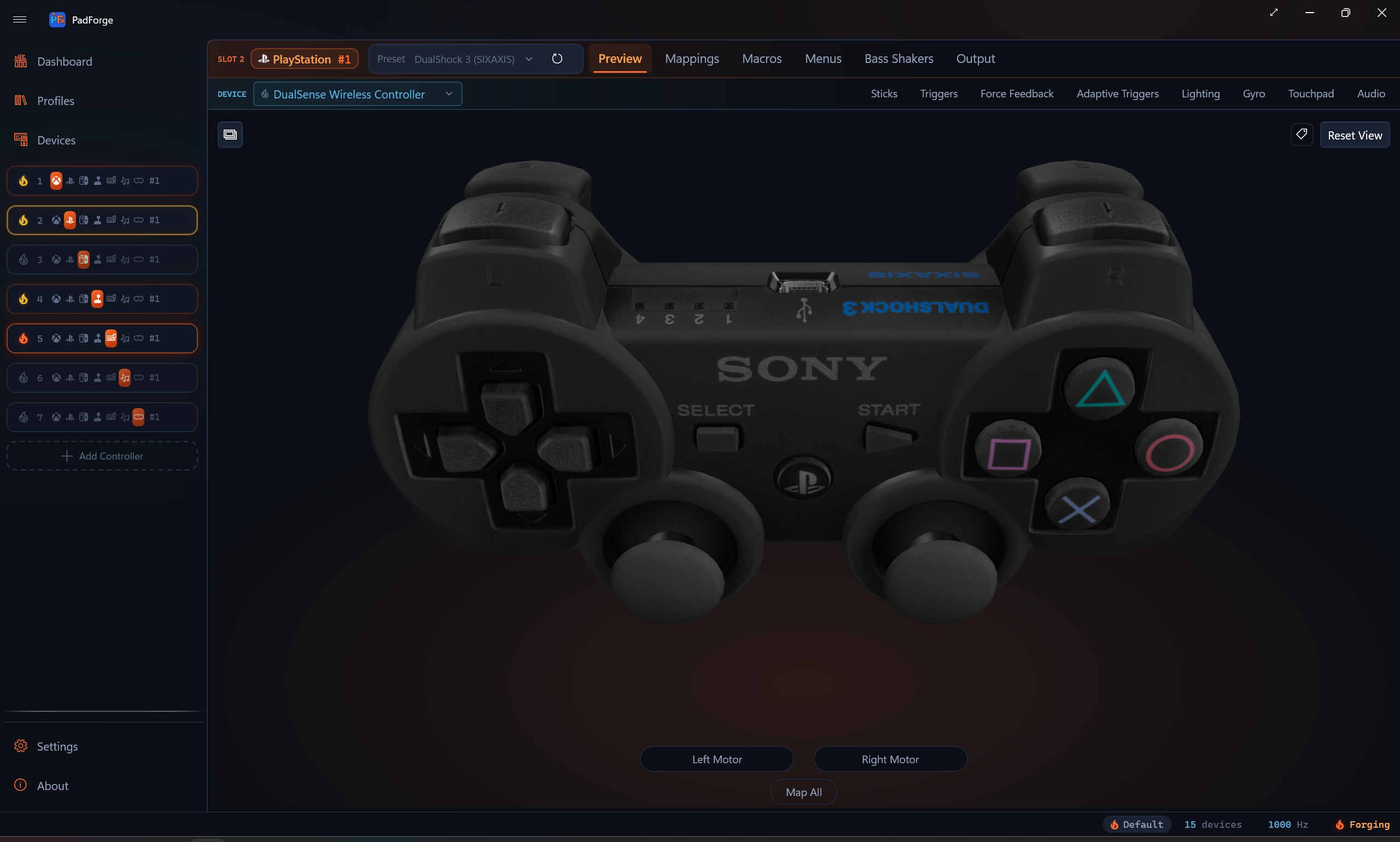
PadForge showing a DualSense in the Spider-Man 2 finish, rendered in the app's 3D controller preview

Finishes

It looks like your controller.
Because it is yours.

PadForge draws the real thing, down to the finish. Pick yours and the preview, the button map and the annotations all follow it.

DualSense in the Spider-Man 2 finish, shown in PadForge's controller preview

Spider-Man 2

DualSense

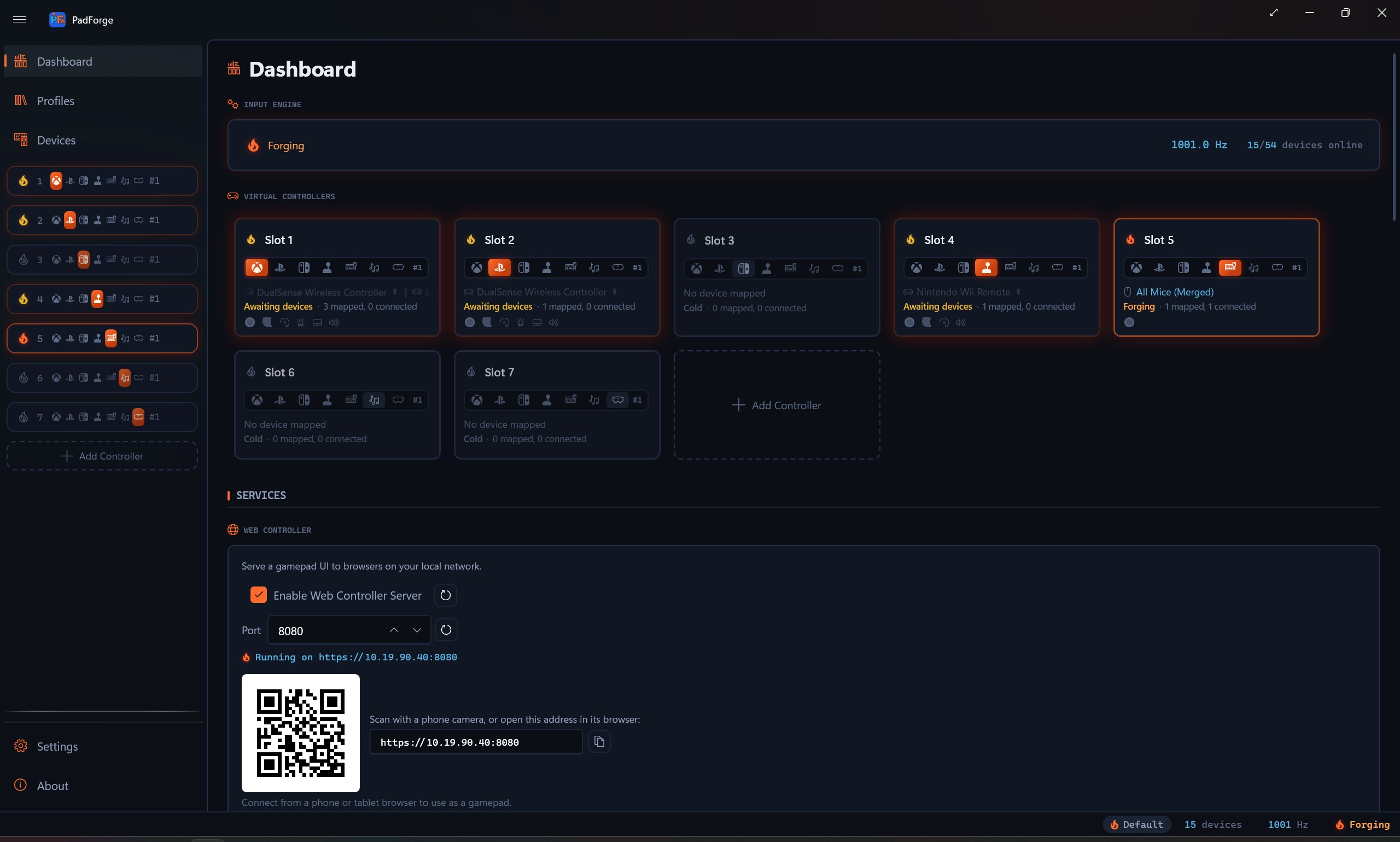
16virtual controllers at once
225+device profiles
1000Hzpolling, sub-ms jitter
$0forever, no paywall

Three steps

Download to playing in minutes.

1

Download and run

Single EXE, no installer. PadForge runs elevated, so Windows shows the UAC prompt every launch. First launch installs HIDMaestro, the driver that creates virtual controllers, inside that same elevated session.

2

Add a virtual controller

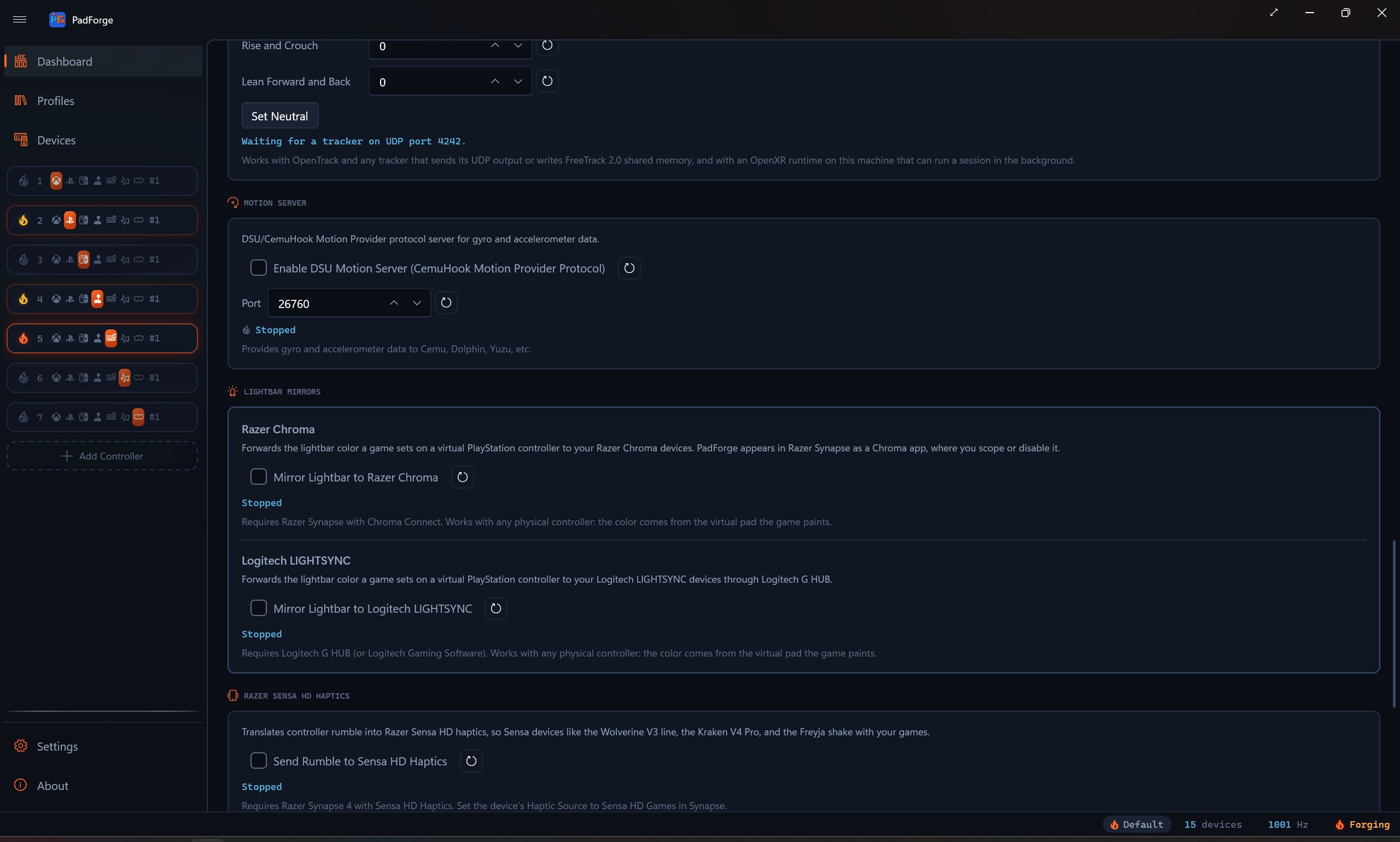
Click Add Controller on the Dashboard. Pick Xbox, PlayStation, Nintendo, Extended (flight stick, wheel, HOTAS), Keyboard + Mouse, or MIDI. Up to 16 at once.

3

Assign your real controller

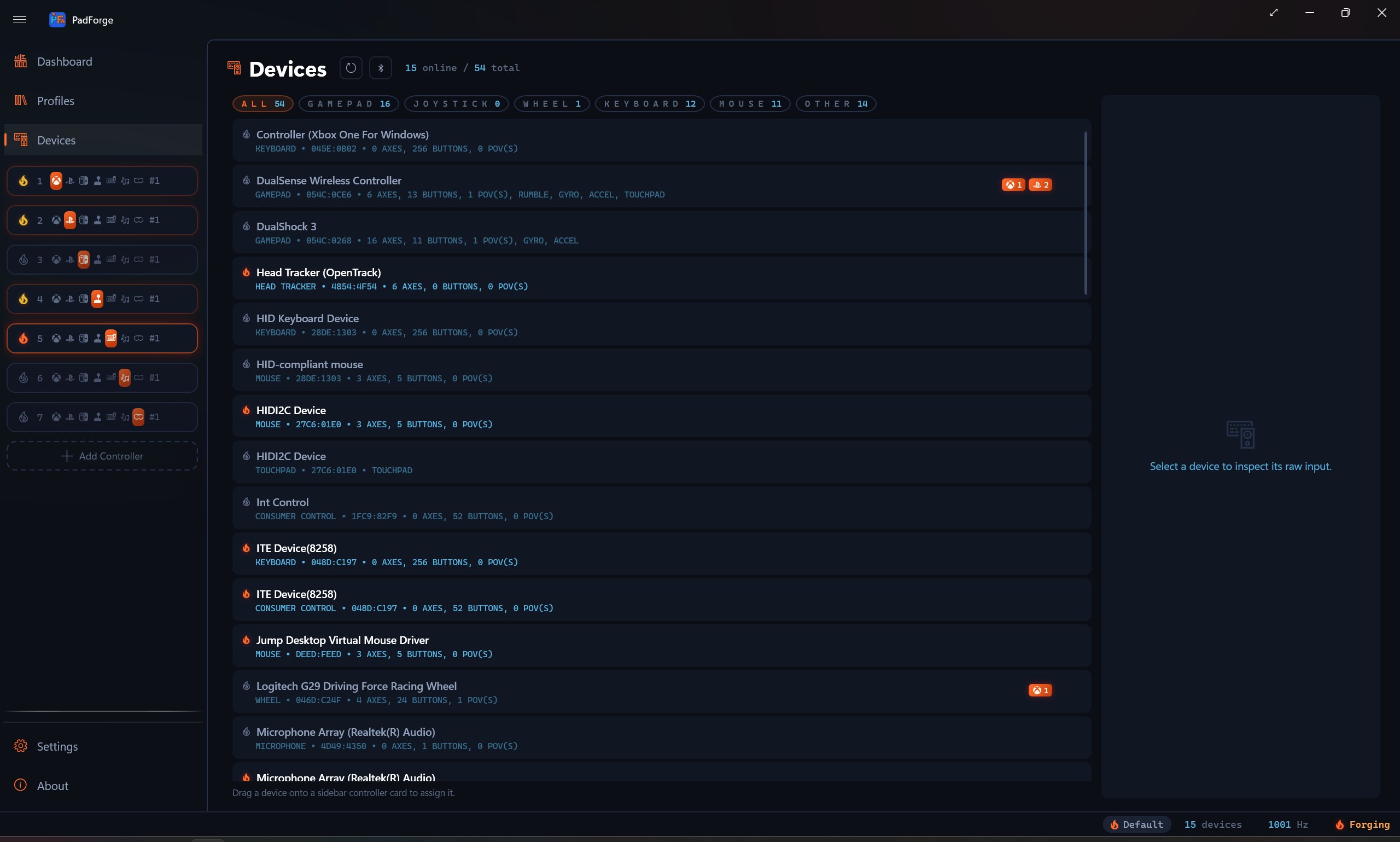
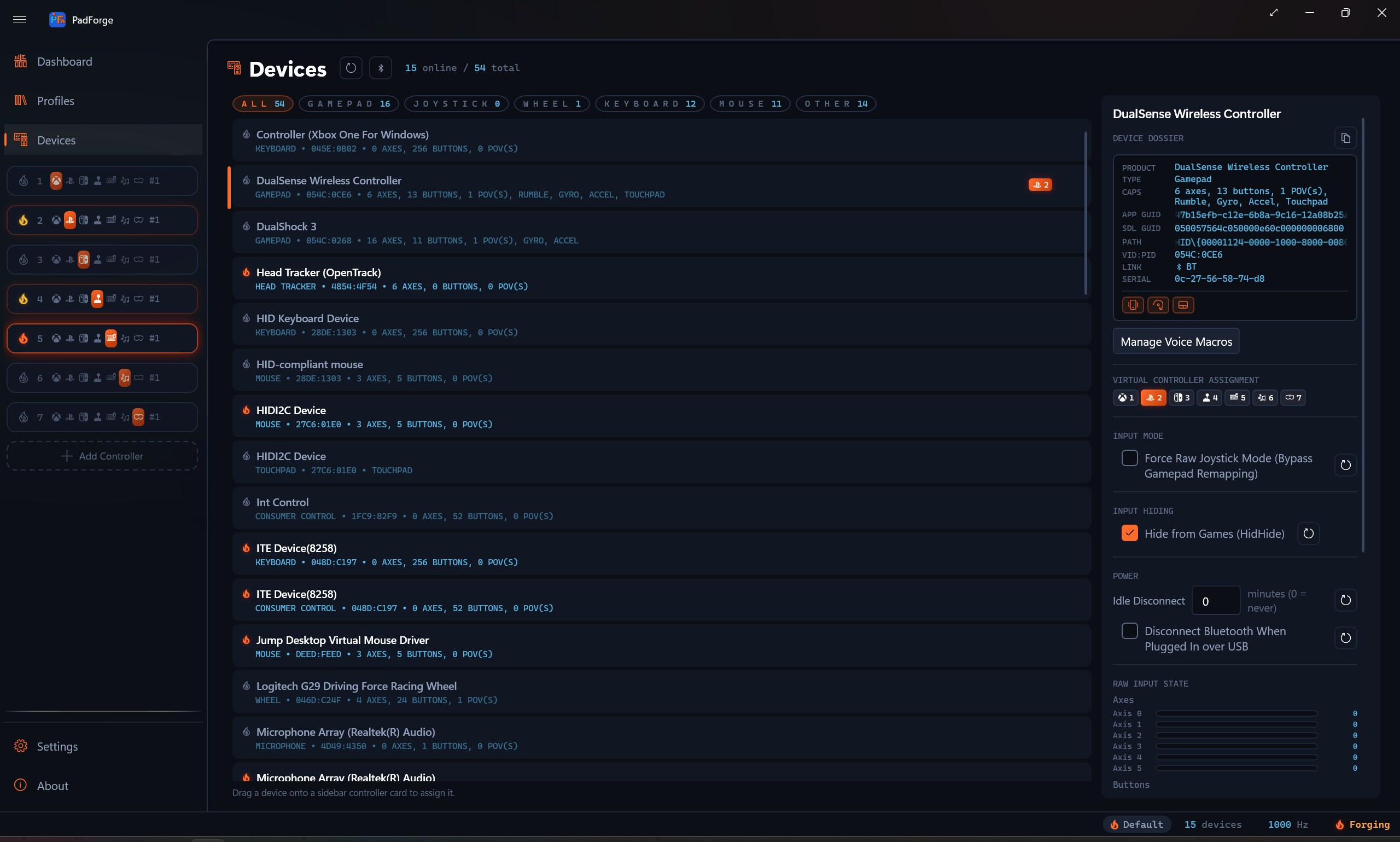
Open the Devices page, click the slot badge on your physical pad. Most controllers auto-map on assign. For the rest, press Map All. Done.

Remap

That game that won't read your wheel? It will now.

PadForge translates a PS5 DualSense into the Xbox pad a Steam game expects. A Logitech G29 wheel into the gamepad a racing game accepts. A Saitek HOTAS into the gamepad a flight game stubbornly insists on. The game never knows the difference.

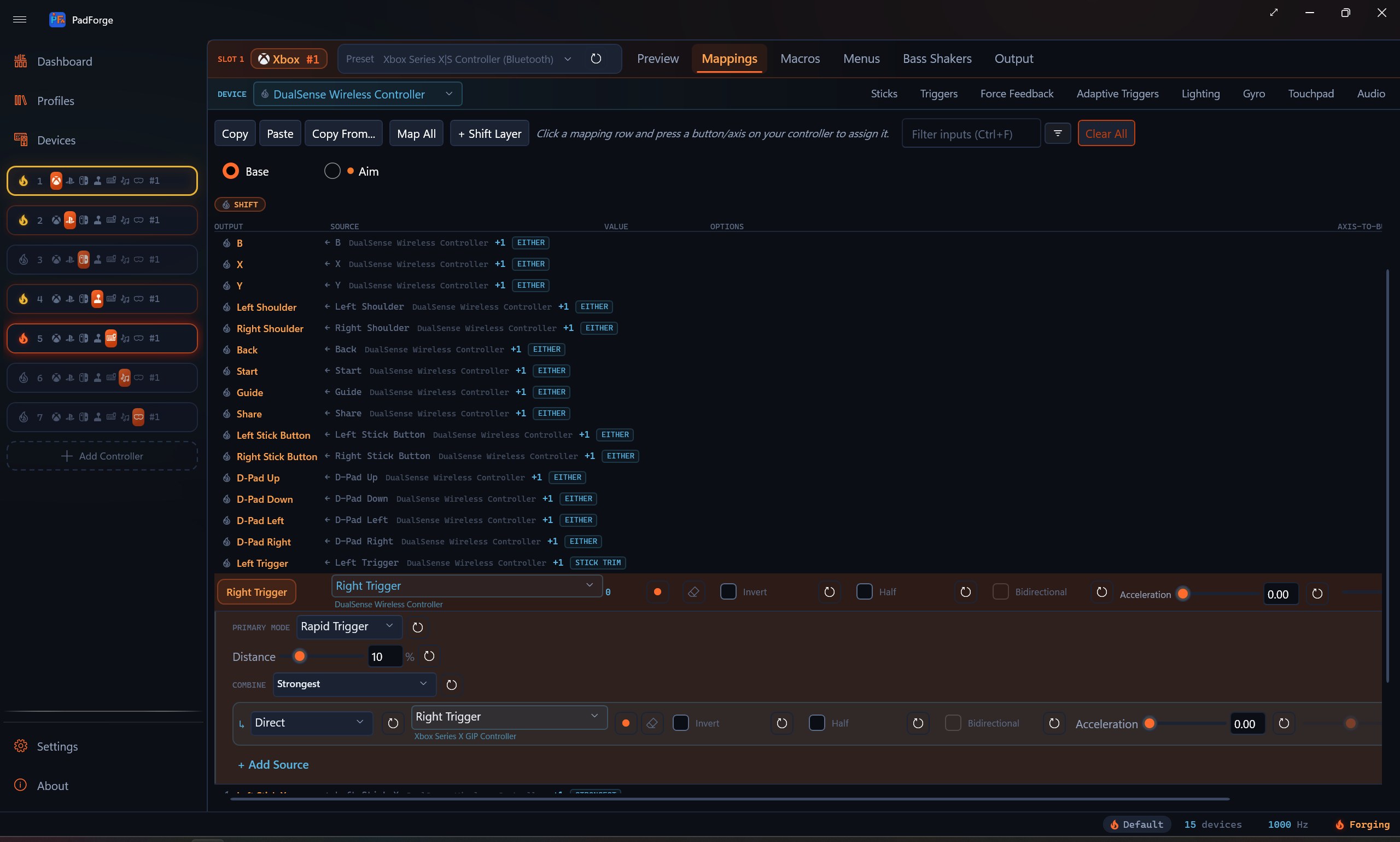
Mapping table with Source, Value, and Options columns
Multi-source mapping

Pedals, wheel, and HOTAS throttle. One virtual stick.

One mapping row can read from any number of physical inputs across any number of physical devices. Six combine modes, Stick Trim, plus a drag-and-drop custom formula editor. Cross-device chords so a button on the wheel and a button on the shifter trigger one virtual press. A per-row Primary Mode picks how that source behaves: Direct, Incremental, Invert On Hold, or Ramp. Ramp turns an Up key and a Down key into a smooth stick axis, with its own attack, release, and autocenter timing.

Virtual VR controllers

A SteamVR hand pair, driven by whatever you already own.

One slot presents a left and a right hand to SteamVR, so a gamepad, a flight stick, a keyboard, or a phone over Wi-Fi can drive them. Every stick, trigger, grip and button is a mapping target, triggers and grips stay genuinely analog, and when a game buzzes a hand the pulse comes back out through the device in your hands. PadForge installs the SteamVR runtime itself if you do not have it, with no Steam account and no Steam client. It does not fabricate positional tracking: the hands sit in front of the headset and follow where you look, so what you get is the controls.

Starter profiles

Thirteen profiles that work on whatever pad you plug in.

Pick one, assign any controller, and play. They cover a kind of game rather than a single title: Desktop, WASD and Mouse, Point and Click, Strategy, Isometric RPG, Twin-Stick, Media Remote, Hotbar, Fighting Games, Emulation, Racing, Space Sim, and Gyro Aim. They never name hardware, so one profile drives a DualSense, an Xbox pad, and a Switch Pro Controller the same way, and every profile that moves a cursor offers the touchpad and the stick at once. Hotbar puts thirty-two abilities behind two triggers. Fighting Games ships tournament-legal SOCD cleaning on both axes. Saving one adds an ordinary profile you can edit.

Shift layers

Caps Lock for your controller.

Each slot can carry extra mapping tables that turn on while a button, chord, or axis is held. Six activation modes: Hold, Toggle, Latch, Cycle, Sticky, and No Button. Cycle walks a queue of layers you choose, with a Previous button that can live on another device. Per-layer color and emoji icon. A Win11-style flyout confirms the active layer the moment it engages.

Stick-assisted triggers

A digital trigger that pulls like an analog one.

Some pads only give you a digital trigger, on or off. Stick Trim changes that. Set a trigger's combine mode to Stick Trim and a stick axis ramps the pull while you hold the button, so a bumper press plus a nudge of the stick reads as a partial squeeze in the game. Each mapping sets its own deadzone, ramp rate, and whether the pull resets on release.

SOCD cleaning

Left and right at once, resolved your way.

Press left and right together and something has to give. The Keyboard + Mouse controller cleans those opposing pairs across every key you map, and any slot can clean opposing virtual controller buttons the same way. Last-wins takes the newest press, the Snap Tap behavior. First-wins keeps the key you were already holding. Neutral cancels both to center.

Nintendo output

A virtual Switch Pro Controller.

The Nintendo slot type creates a virtual Switch Pro Controller through HIDMaestro. Games and emulators that speak Switch see the real thing: the full button set, gyro passed through from your physical pad, and a HOME button LED under your control.

Mouse gestures

Hold a mouse button. Flick. Fire.

Hold any button on the mouse and flick the cursor. Up, down, left, right, or a plain click while held, five gestures off one button. Each fires its own action, so a single side button turns into five bindings. Send a flick to a shift layer, a macro, or a virtual button.

Media keys as inputs

Your keyboard's media keys, mapped.

The media row on a keyboard, a media remote, a headset's transport buttons: PadForge reads them as their own device with named button chips. Map Play/Pause, Mute, Volume, or track keys to a virtual button or a macro trigger, same as any other input.

Feel

Your wheel fights back.

Plug a Logitech, Fanatec, or Thrustmaster wheel into a slot and PadForge drives its force feedback in the wheel's own native protocol: constant force plus spring, damper, and friction straight from the game. A dedicated Wheel tab sets rotation range in degrees, auto-center strength, and the RPM shift LEDs. A racing game that only knows how to talk to an Xbox pad now loads your wheel up with real road feel.

Wheel tab with rotation range, auto-center, and RPM shift LED controls
Trigger motors that feel the game

Forza, Gears, and Halo on your real Xbox pad.

PadForge passes Xbox impulse trigger data straight to the assigned physical Xbox One, Elite, or Series pad. The same data routes to DualSense as Adaptive Trigger Vibration, so a DualSense playing Forza buzzes the triggers in step with an Xbox pad doing the same. Plus audio-bass-driven trigger rumble, a constant trigger force, and a Trigger Routing card that feeds the main rumble motor into the trigger motors with per-trigger source, scale, and activator settings.

DualSense effects in any game

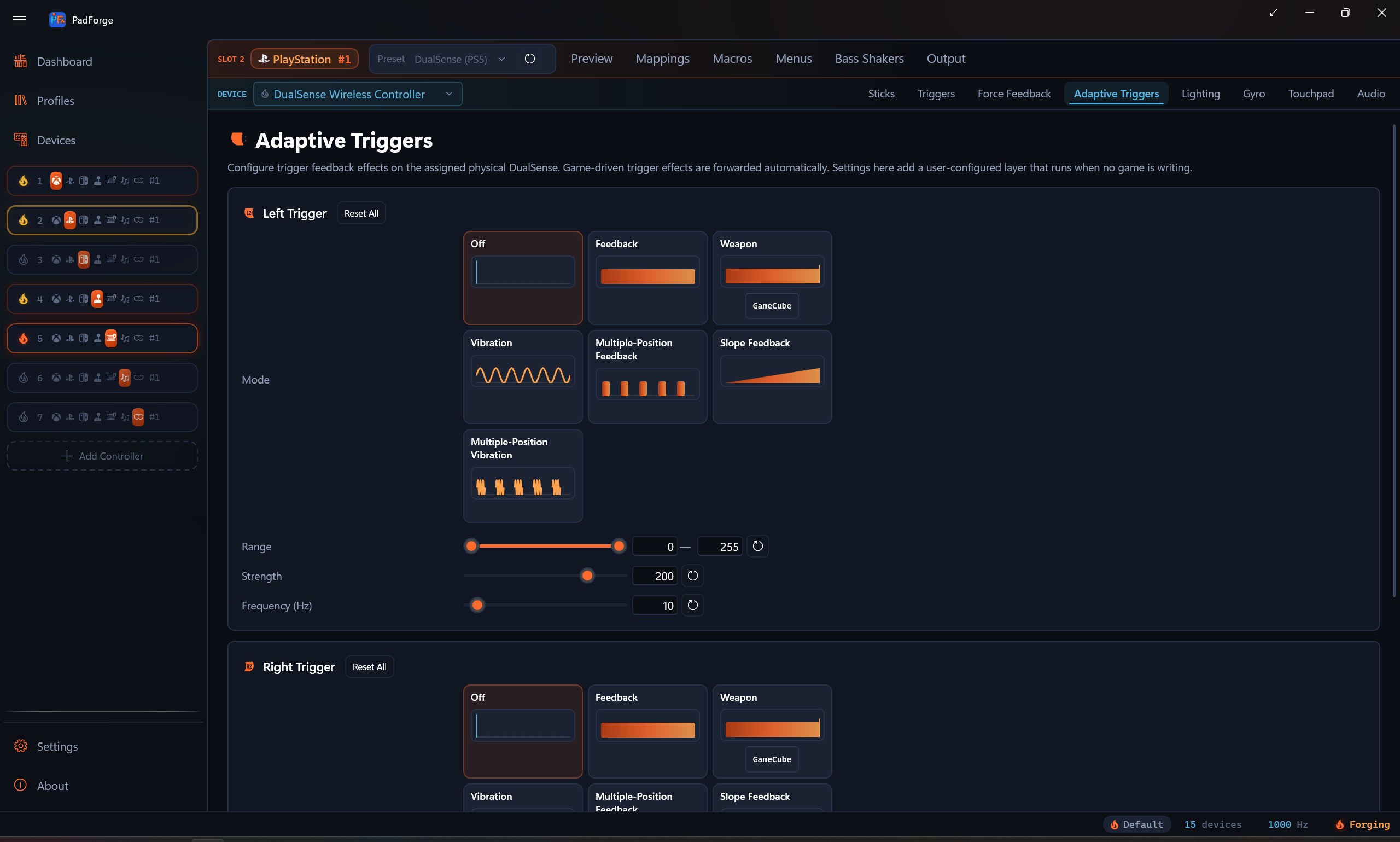
Adaptive triggers and lightbar that don't need the game's blessing.

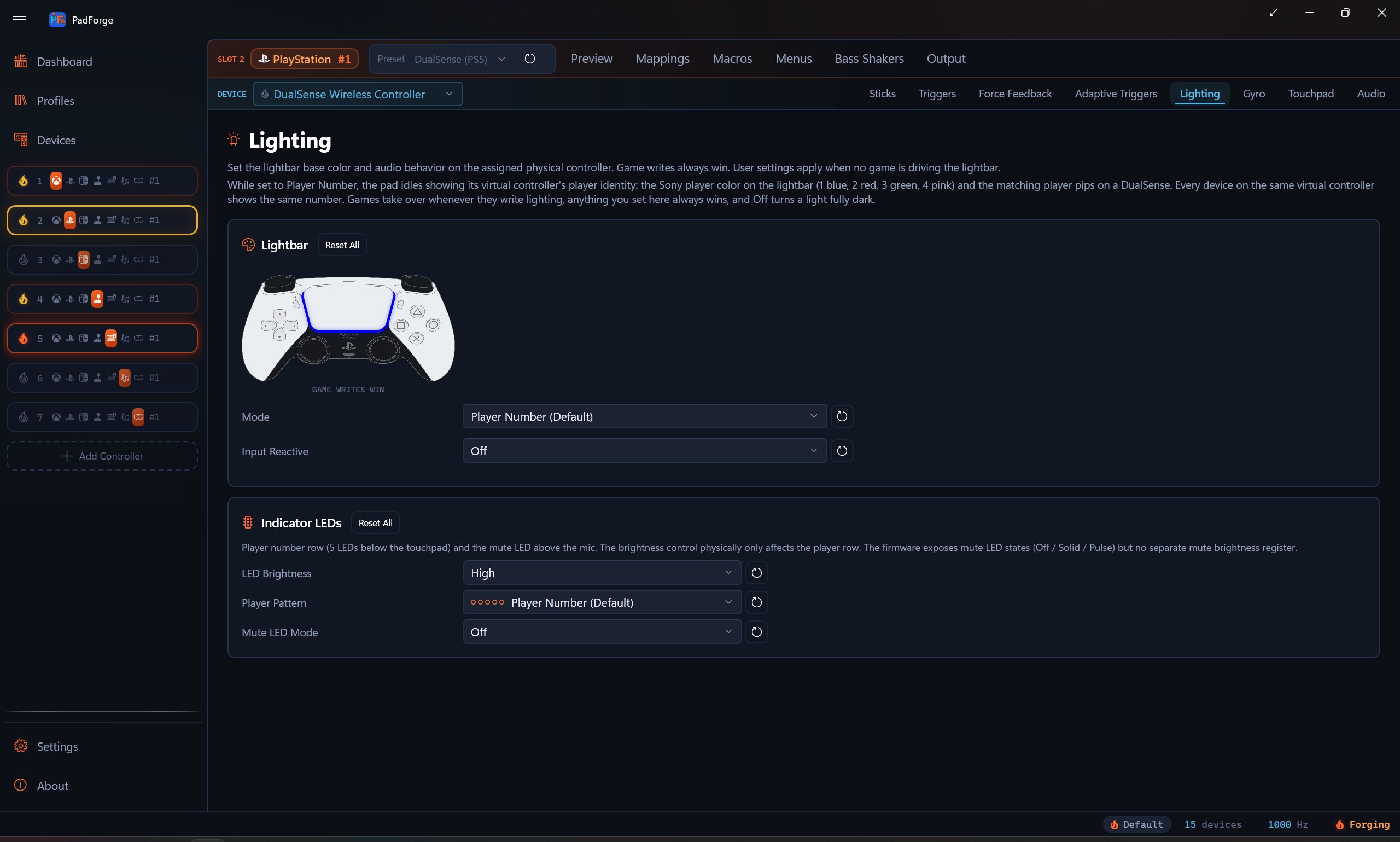
Seven adaptive trigger modes with a live preview that draws the resistance curve as you drag. Fifteen lightbar modes, six of them tied to your system audio (three Audio Pulse variants, three Audio Bands variants). The DualSense lights and triggers light up in games that have never heard of a DualSense.

Audio through the controller speaker

Sound from the speaker in your hands.

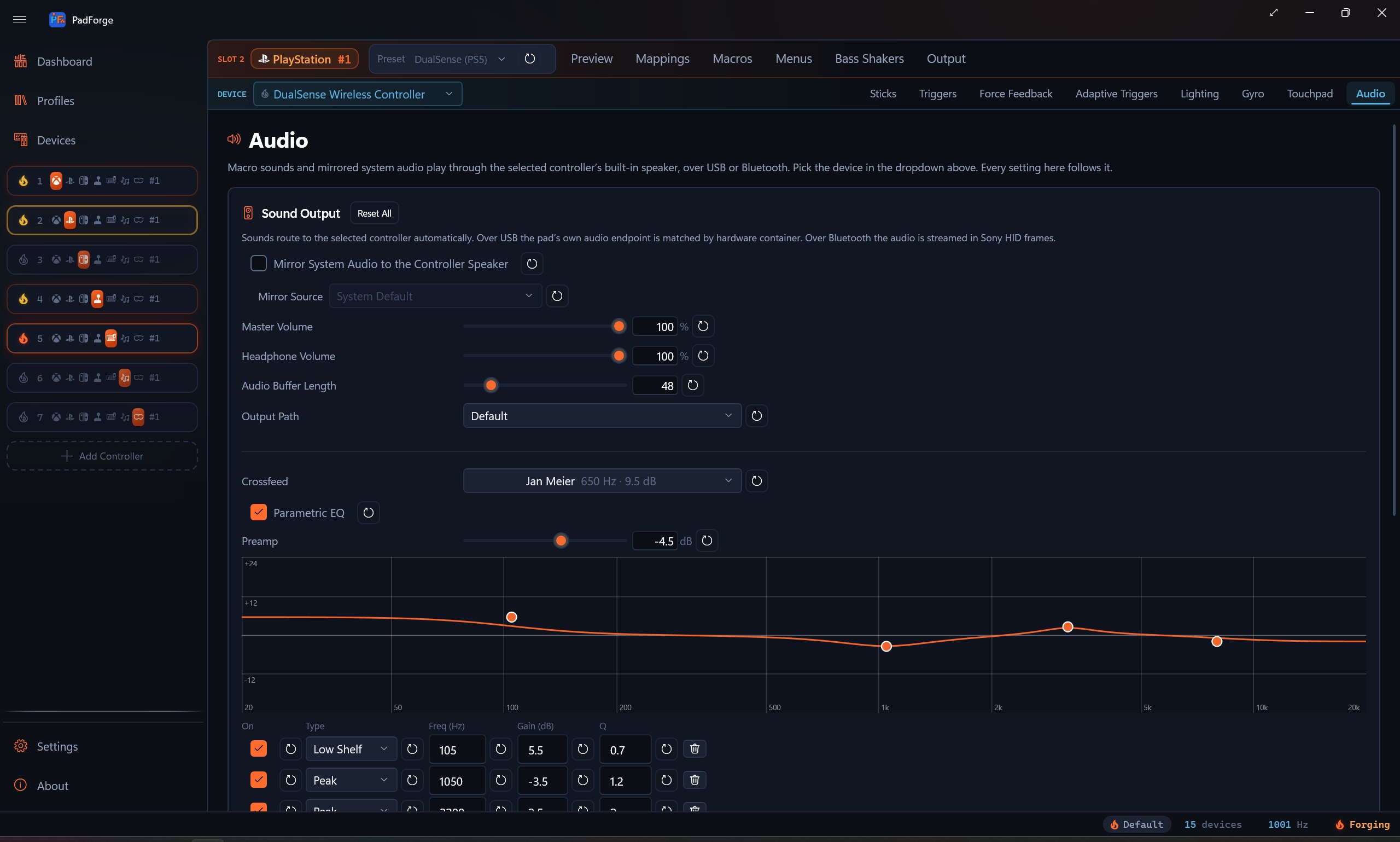
The DualSense and DualShock 4 have a speaker built in, and PadForge can drive it. Mirror a Windows audio output to the pad, or send a slot's macro sounds straight to it. DualSense over USB or Bluetooth, DualShock 4 over Bluetooth. Pads with haptic actuators instead of a speaker, like a Joy-Con, Switch Pro, Steam Controller, or Steam Deck, play the same sounds as a vibrating tone, and a combined Joy-Con pair plays it through the coil the game drives. A Wii Remote plays them through its own speaker.

Guide LED brightness

Dim the glowing button, or let it follow the battery.

Set how bright the Guide button glows on an Xbox One, Elite, or Series pad over USB, the home LED on the 2015 Steam Controller, and the HOME button on a Switch Pro or right Joy-Con on any connection. Hold it at a fixed level, or let it track the battery so a full charge shines and a low one dims. A macro action changes it on demand.

Bass shakers

Rumble you can sit on.

The Bass Shakers tab routes the game rumble and force feedback a slot receives to any audio output as low-frequency tones. Four voices, low motor, high motor, and both triggers, each with its own 20 to 120 Hz frequency and gain, a mono or controller-stereo split, and a frequency sweep to find where your shaker responds strongest.

Motion

Aim with the controller, not the stick.

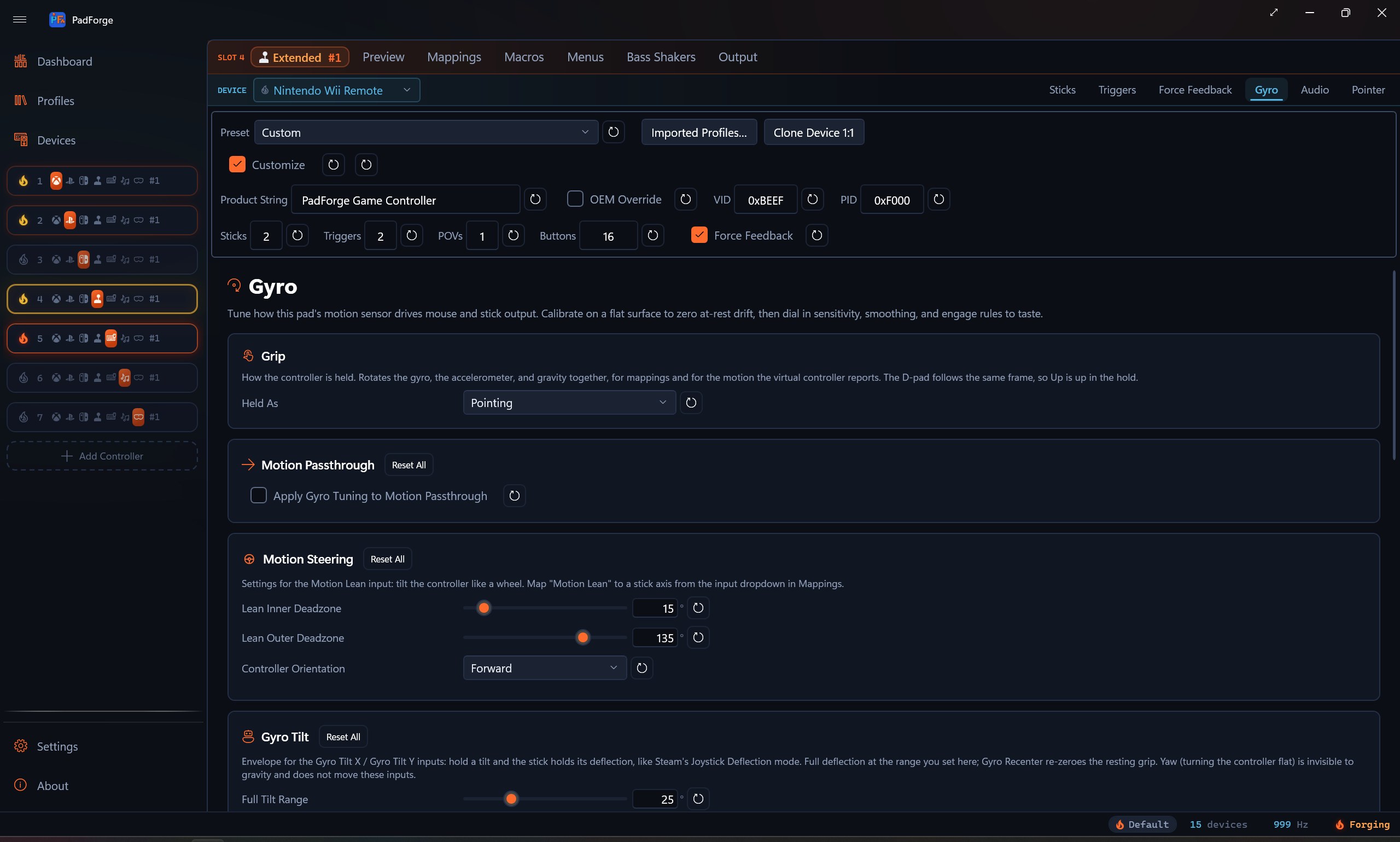
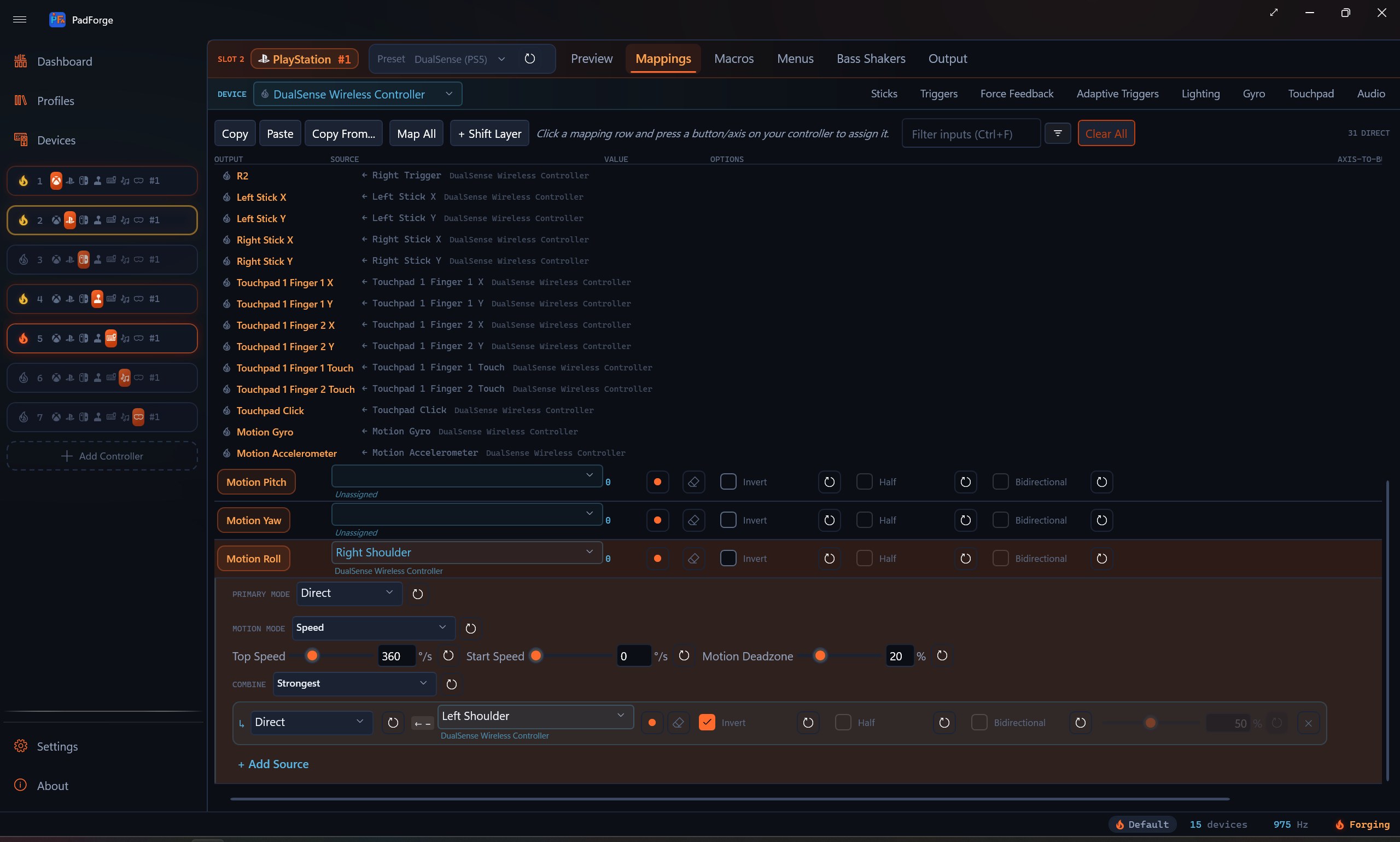
Gyro at Steam Input parity. Reference frames (Local, Player, World). Dual-threshold smoothing. Real-world calibration. A cross-device Aim Engage button that lets you hold a paddle on the wheel to wake the gyro on your handheld. A stick gate wakes the gyro from any stick and any direction, read before the stick's own deadzone. Tuning saves per pad per slot, so the same pad on two slots can feel two different ways.

Gyro tab with Motion Passthrough, Calibration, Sensitivity, Response Shaping, and Engage cards
Touchpad as more than a touchpad

Turn the DualSense pad into a mouse, a stick, or a D-pad.

Map a finger to mouse X/Y with per-axis sensitivity, invert, and a Trackpad pointer response that moves the cursor the way a laptop touchpad does. Anchor a virtual analog stick where your finger lands. Drop a wedge-thresholded D-pad on top. Pressure-sensitive pads expose per-finger pressure as sources, and swipe haptics tick the pad as a finger travels. Plus the gesture stack: 4-way and 8-way swipes, taps, longpress, pinch, rotate, two- to five-finger gestures, and shape templates. Every toggle saves per pad per slot.

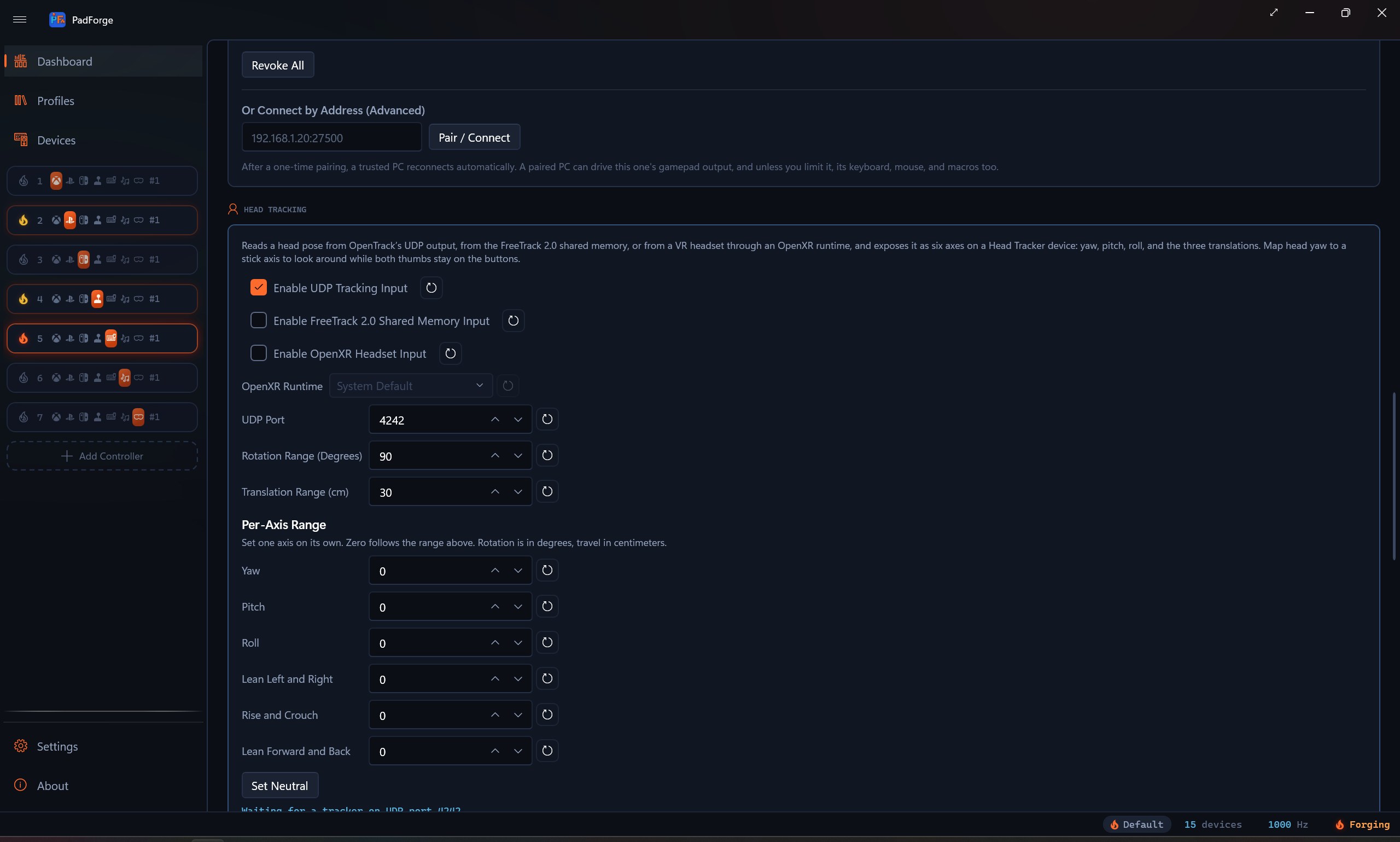
Headset head tracking

Turn your head to aim.

Sony headphones that carry a head tracker become a motion source, confirmed on the WH-1000XM5 family. The whole gyro pipeline takes it: gyro-to-stick, gyro-to-mouse, aim engage, calibration, and the motion server. Discovery is by capability rather than a model list, so any headset exposing the same sensor collection is a candidate. It reports rotation, never position, and it pairs best with an engage button because head tracking that is always live is disorienting.

Motion to emulators

Gyro into Cemu, Dolphin, Yuzu, and Ryujinx.

The built-in DSU / Cemuhook server broadcasts gyroscope and accelerometer on UDP port 26760 so emulators can use real motion for Splatoon, Wii titles, 3DS games, and anything else that asks for it. Every motion source PadForge reads feeds it: DualSense, DualShock 4, Switch Pro, Joy-Con, 2026 Steam Controller, DualShock 3 sixaxis, and Wii Motion Plus.

Flick Stick

Flick to face it. Gyro to finish it.

Flick the stick to its edge and the camera snaps to that direction, then rotates as you sweep the rim, while the gyro handles fine aim. Flick sources ride the right stick, the left stick, or a touchpad, and a rotation offset card corrects games whose camera turns more or less than the flick angle.

Wii pointer modes

Point the Wii Remote like a light gun, or a mouse.

The Pointer tab reads the Wii Remote's IR camera several ways. FPS Mouse drives the desktop mouse for shooters. The border modes keep the aimed area square, corrected for your screen's aspect ratio. When the camera loses the sensor bar, IR-offscreen freeze holds the last position instead of snapping to a corner. Cycle the modes live, or jump straight to one from a macro.

Joy-Con 2 optical mouse

The Joy-Con 2 is a mouse. So use it like one.

A Nintendo Switch 2 Joy-Con has an optical sensor on its face. Set it on a desk and slide it. Two sources, Mouse Motion X and Mouse Motion Y, drive a stick for mouse-look, a button, or the scroll wheel, each with its own Sensitivity dial. The right Joy-Con's IR camera also reports a brightness value you can map, so covering the sensor works like a button.

Mouse as a source

Aim with the desktop mouse.

Two Mouse Position sources read where the cursor sits and drive a virtual stick from it, each with a Sensitivity dial of its own. Separate Mouse Speed sources read movement instead of position, for velocity-style bindings.

Anywhere

Open a browser. Press buttons.

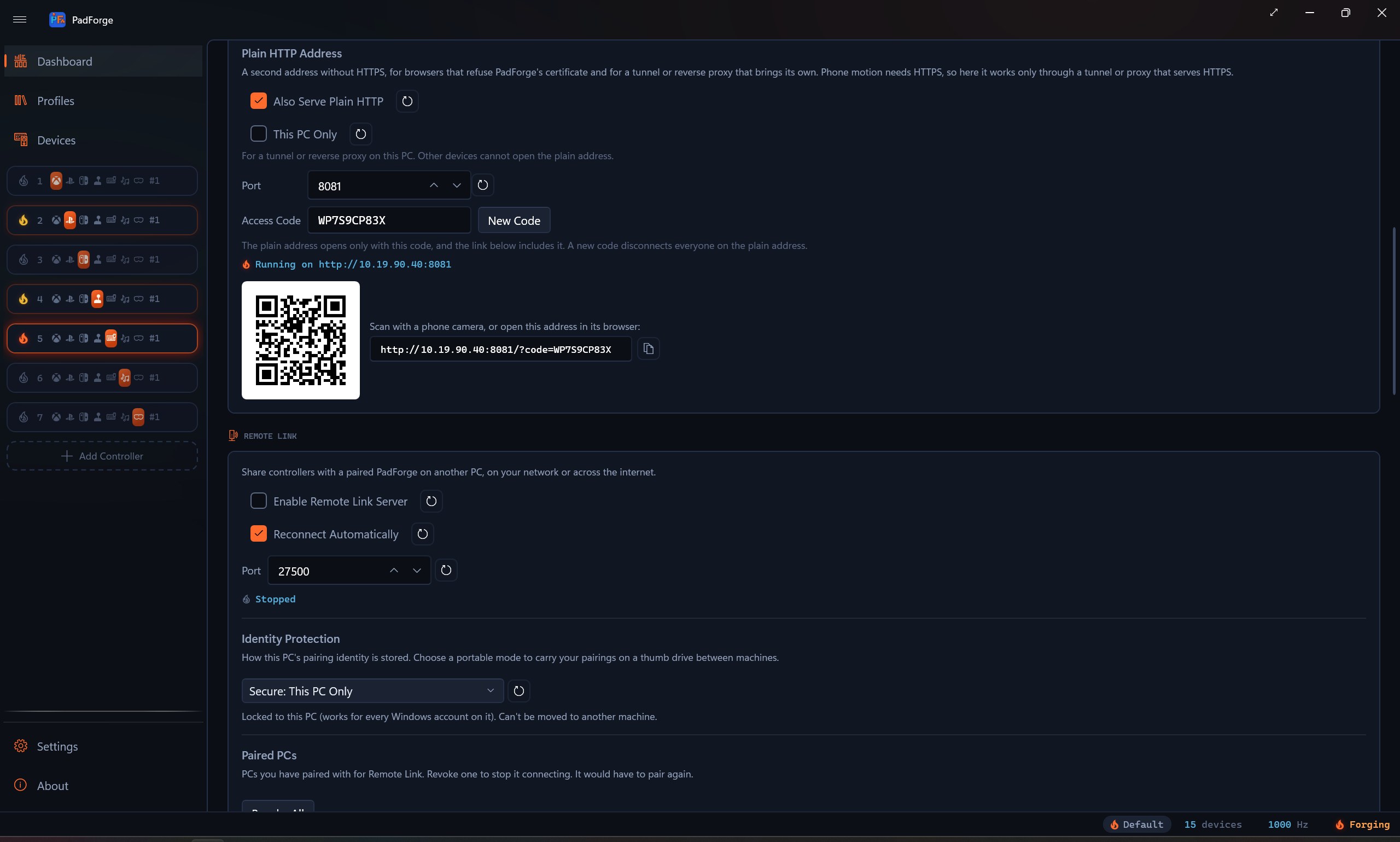
PadForge runs a tiny web server. Any device with a browser on your Wi-Fi can load it, pick a layout (Xbox 360, DualShock 4, or multi-touch touchpad), and play. Up to 16 phones connect at once, each a separate virtual pad. Touch buttons, dual analog sticks, an 8-way D-pad. Real rumble feedback through the Vibration API. No app to install on the phone.

Web controller showing analog sticks, D-pad, triggers, and ABXY buttons
Share controllers across your PCs

The controller is on the other PC. The game doesn't care.

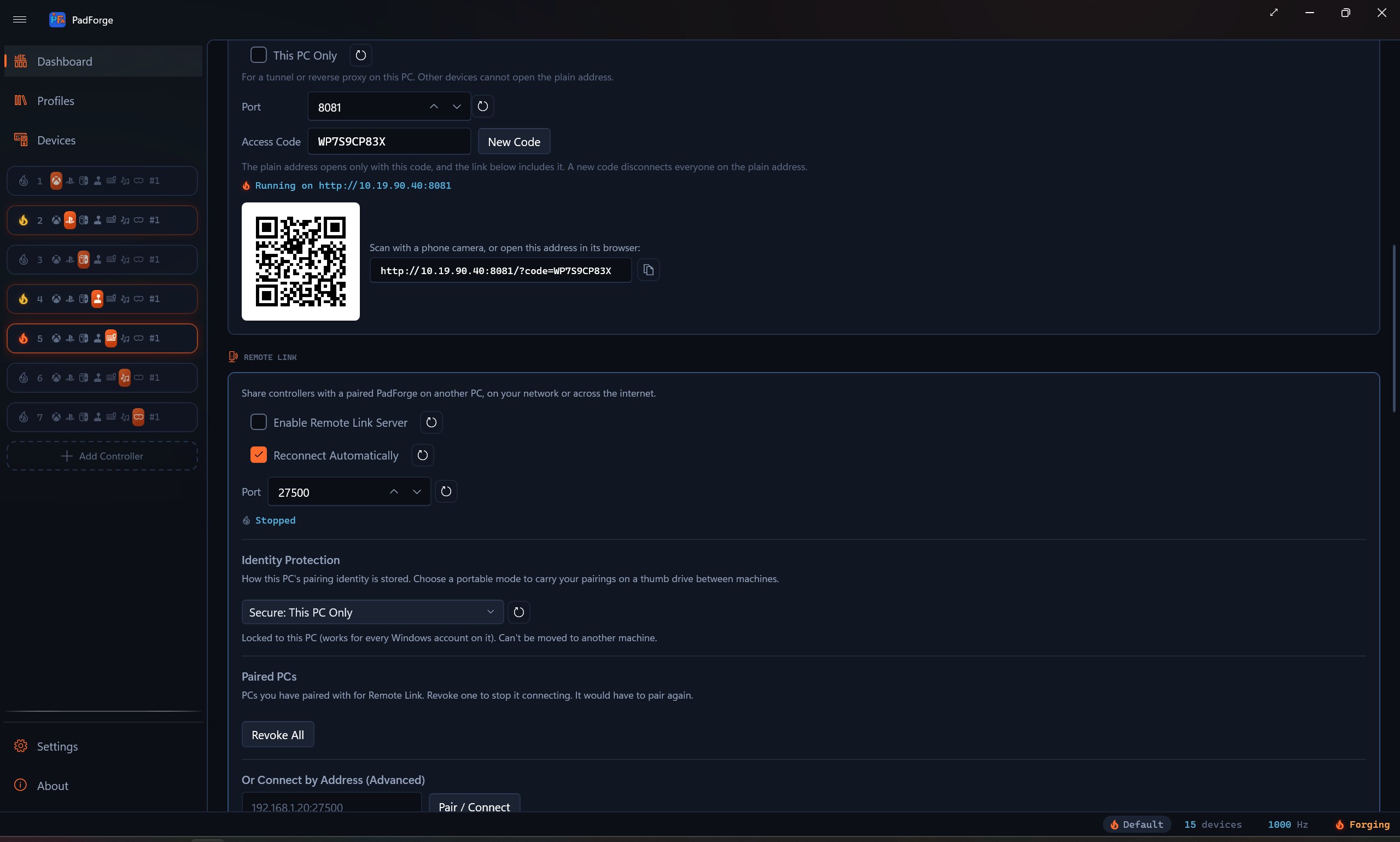
Remote Link shares devices across the PadForge PCs on your network. A controller, wheel, or HOTAS plugged into one PC drives a game on another, both directions at once, and the feedback comes home: rumble, force feedback, adaptive triggers, lightbar, player LEDs, and the controller speaker all play on the physical device wherever it lives. Pair once with a six-digit code. Trusted PCs reconnect on their own. A gamepad-only switch keeps a paired PC away from your keyboard, mouse, and macros.

A MIDI keyboard as a controller

MIDI in, gamepad out.

PadForge reads MIDI input devices as mapping sources. Notes, Control Change knobs, pitch bend, and encoder dials from a MIDI keyboard or pad controller bind like any button or axis, so a piano key can press A and a mod wheel can pull a trigger. It rides the same Windows MIDI Services stack the MIDI virtual controller uses. No bridge software.

MIDI from a gamepad

A 16-channel MIDI controller, no extra hardware.

Map sticks to Control Change messages. Map buttons to Note On / Note Off. Set velocity per slot. PadForge creates a real Windows MIDI endpoint that DAWs (Ableton Live, FL Studio, Reaper), VJ tools, and stage lighting apps can subscribe to. No loopMIDI bridge.

NFC tag triggers

Tap a tag. Fire a macro.

Plug in an NFC reader, any PC/SC contactless reader like an ACR122U, and a tag tap runs a macro. Register a tag from the Devices page: hold it on the reader, give it a name, and it is saved for good. Each tag becomes its own trigger, next to an Any NFC Tag trigger that any tag fires. Map an amiibo, a sticker, or a card to a button combo, a profile switch, or a whole action sequence.

On-screen touchpad overlay

A touchpad on any monitor.

Pin a transparent touchpad window to any monitor and use it as a touchpad input for the assigned DS4 or DualSense slot. Adjustable opacity, size, and position. No phone required.

Every device

Local co-op without limits.

Run two sim racers on two wheels at once. A flight stick plus throttle plus rudder pedals as one virtual HOTAS. Mixed gamepad types in one session, up to 16 virtual controllers. One combo press toggles every virtual controller on or off when you need to step away.

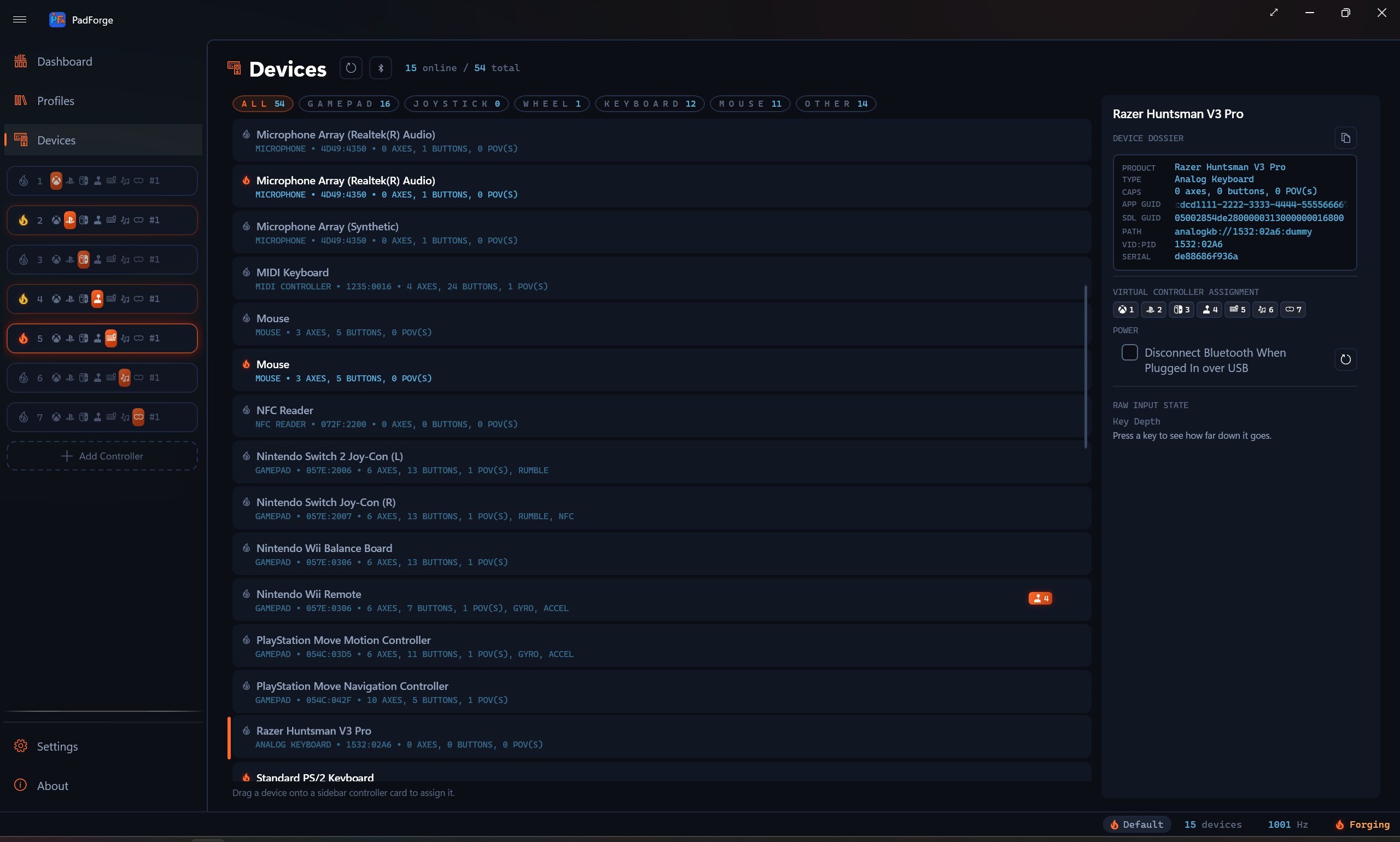
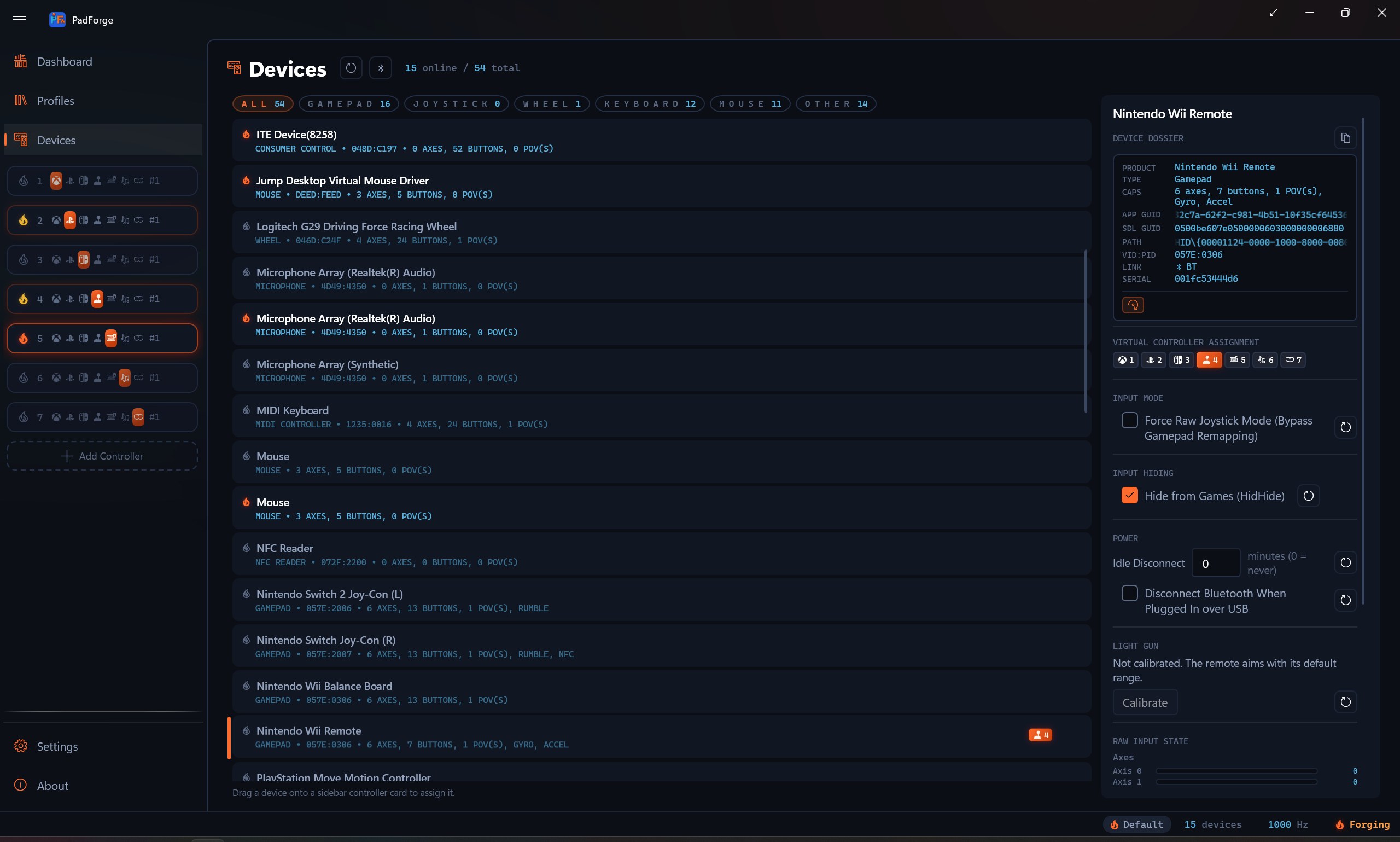
Devices page with every detected device as a card
Wii controllers, paired in-app

Pair a Wii Remote without leaving PadForge.

A Wii controller's PIN is six raw bytes set by the sync button, not text you can type into the Windows prompt. So PadForge runs the pairing itself: click Pair, press the red SYNC button, and the controller bonds and reconnects on any button press after that. A bare Wii Remote, Remote plus Nunchuk, Classic Controller, and Wii U Pro Controller all map as normal pads, with the accelerometer and Motion Plus gyro feeding the same motion pipeline as a DualSense. A Balance Board reports weight and lean as mapping sources.

DualShock 3, paired in-app

The PS3 pad on PC, without the driver hunt.

Plug it in over USB and PadForge binds it through WinUSB on its own. Or pair it over Bluetooth from the Devices page, which installs the signed BthPS3 driver only when you pair one. Either way you get the sixaxis motion, ten pressure-sensitive face buttons, rumble, the player LED, and the battery reading. No DsHidMini, no ScpToolkit. Remove the controller and PadForge cleans up the pairing after it.

Battery and idle disconnect

See the charge. Sleep it when idle.

Every wireless pad that reports a battery shows its charge on the Devices page, with a charging glyph while it tops up. Set an Idle Disconnect timer and a Bluetooth controller drops its link after a few quiet minutes, so it sleeps instead of draining on the coffee table. A Disconnect Controller macro turns one off on command.

Unknown hardware welcome

If Windows sees it, you can map it.

For unrecognised gamepads, Force Raw Joystick Mode exposes every raw button and axis directly. Or click Submit Mapping on the device's card: your browser opens a pre-filled GitHub issue, you name the inputs, and once merged the mapping ships to every PadForge user on the next release.

Compare

How PadForge stacks up.

Feature comparison against the other Windows controller mappers. Each cell is verified against the tool's own docs, source, or release notes: x360ce v4.17.15.0 (last public release Nov 2020); XOutput 3.32 (deprecated and archived Dec 2024); reWASD 9.4.0 (May 2026); ds4windowsapp/DS4Windows v3.5 (Feb 2026); Steam Input (rolling Steam client updates). Cells marked ⚠️ mean the feature exists but is limited or unverified at the level of detail PadForge implements it.

Feature by feature
PadForge x360ce XOutput reWASD DS4Windows Steam Input
Free$9.99+
Open source✅ archived
Works outside Steamonly via Add Non-Steam Game
Actively developed✅ 2026no release since Nov 2020archived Dec 2024✅ v9.4.0 (2026)✅ v3.5 (Feb 2026)
Xbox 360 virtual output
Xbox One / Series virtual output✅ Xbox One
DualShock 4 virtual output
DualSense virtual output❌ input only
Switch Pro virtual output✅ via HIDMaestro
Flight stick / wheel / HOTAS virtual output (DirectInput)✅ 225+ HM profiles
MIDI virtual output
MIDI input as a mapping source✅ notes / CC / pitch bend / encoders
Keyboard + Mouse virtual output
Multi-source per row (one output, many inputs)✅ 6 combine modes + formula⚠️ "Combine Into" merges pads⚠️ MapperDataCollection (basic)❌ uses per-input Activators⚠️ per-input Activators
Custom formula editor (arithmetic, logic, if-then-else)✅ drag-and-drop operators + 10 starter recipes
Shift layers / modifier overlays✅ Hold / Toggle / Latch / Cycle / Sticky / No Button✅ up to 10 (Hold / Toggle / Custom)✅ Mode Shifts✅ Action Set Layers (stackable)
Cross-device chords (input on pad A + input on pad B)✅ via Group of devices❌ same controller only
Gyro mapping✅ Local / Player / World, RWC, Aim Engage, Flick Stick✅ since v5.3 (curves, Flick Stick)✅ gyro-to-mouse, gyro-to-RS
Mouse cursor position as a mapping source✅ Mouse Position X / Y, per-row Sensitivity
SOCD cleaning (Snap Tap, last-wins / first-wins / neutral)✅ keys and controller buttons❌ (Valve bans it in CS2)
Mouse gestures (flick from a held button)✅ up / down / left / right / click
Xbox Impulse Trigger passthrough✅ + DualSense AT Vibration auto-route✅ Xbox One output only
Stick-assisted analog triggers (digital hold ramped by a stick)✅ Stick Trim, per-mapping deadzone / rate⚠️ 3-zone actuation, graded curve unverified⚠️ unverified
Constant trigger force
Audio-bass trigger rumble
Audio-bass body rumble
DualSense Adaptive Triggers✅ 7 modes + GameCube preset✅ 11 presets⚠️ limited
DualSense lightbar✅ 15 modes inc. Strobe + Battery✅ 6 modes + Player LED + Mic LED⚠️ basic, no audio⚠️ unverified
Guide / home LED brightness✅ Xbox One / Elite / Series + 2015 Steam Controller + Switch Pro / Joy-Con HOME⚠️ unverified
Controller speaker audio (DualSense / DualShock 4)✅ mirror Windows audio + macro sounds, USB / BT
Touchpad: joystick / D-pad / mouse + gesture engine✅ joystick (anchor-relative), wedge D-pad, per-axis mouse (sensitivity + invert), in-box gestures (4-way / 8-way swipes, taps, longpress, pinch, rotate, two- to five-finger), shape templates (Circle in either direction, Square, Triangle, Z, Checkmark), custom recorded shapes⚠️ touchpad-as-mouse / -as-stick + click, no gesture engine⚠️ touchpad-as-mouse + four-direction Touchpad Swipe bindings⚠️ joystick / D-pad / mouse / touch menu, no multi-finger or shape recognition
HID PID 1.0 force feedback (wheels)✅ constant + periodic (DirectInput)⚠️ basic passthrough only
Native wheel FFB protocol (Logitech / Fanatec / Thrustmaster)✅ + rotation range, auto-center, RPM LEDs
DSU / Cemuhook motion server (Cemu, Dolphin, Yuzu, Ryujinx)✅ port 26760
Phone as controller✅ in-browser, no app install, up to 16 phones at once, touchpad layout included⚠️ reWASD Mobile app (one phone, no touchpad layout)
Share a controller with another PC's games over a network✅ Remote Link, both directions, feedback returns
Per-app profile switching✅ since v4.17.12 (Nov 2020)✅ Autodetect✅ per-game by design
Max simultaneous virtual controllers164 (hard-coded PAD1-4 in UI)4 (UI matches XInput slot indices)4 (Slot UI cap)4 (Output Slots UI cap)1 per physical pad
1000 Hz polling⚠️ unverified⚠️ unverified✅ user-selectable 500 / 1000 Hz✅ on USB DS4⚠️ unverified
3D + 2D controller visualization⚠️ 2D Xbox 360 only⚠️ 2D only⚠️ basic⚠️ configurator preview
Multi-point sensitivity curve editor✅ unlimited points⚠️ single slider⚠️ deadzone only✅ custom 4-point⚠️ preset curves✅ response curves
2026 Steam Controller support✅ via SDL3 fork⚠️ unverified
DualShock 3 as a source✅ USB + in-app BT pairing, no DsHidMini⚠️ unverified⚠️ unverified✅ + gyro (9.3.0)✅ native (no gyro)
Wii Remote / Nunchuk / Classic / Wii U Pro as a source✅ all four forms, in-app pairing, IR pointer✅ in-app pairing (v9.4+), no IR pointer

The spec sheet

Every feature, end to end.

Short punch list. Each card is one feature. The documentation covers each in full.

Remote Link

Share a controller, wheel, or HOTAS with the other PCs on your network. Both directions at once. Rumble, force feedback, adaptive triggers, lightbar, player LEDs, and speaker audio return to the real hardware. Pair once with a six-digit code. Works on your home network, or across the internet through a VPN like ZeroTier.

Steam Workshop config import

Browse the community controller configs on the Steam Workshop and translate the one you pick into a PadForge profile: buttons, sticks, triggers, keyboard and mouse bindings, shift layers, and macros. Anonymous Steam connection, no account. An import report shows what came across clean and what was approximated. Off until you enable it in Settings.

Native wheel force feedback

Logitech, Fanatec, and Thrustmaster wheels driven in their own native protocols: constant force plus spring, damper, and friction. A Wheel tab for rotation range, auto-center, and RPM shift LEDs.

Bass shaker output

Route game rumble and force feedback to any audio output as low-frequency tones. Four voices with per-voice frequency (20–120 Hz) and gain, mono or controller-stereo split, and a frequency sweep to tune your shaker.

Nintendo virtual controller

A virtual Switch Pro Controller through HIDMaestro, with gyro passthrough and HOME button LED control. Games and emulators that speak Switch see the real thing.

Virtual VR controllers

One slot presents a SteamVR left and right hand pair, driven by any controller, keyboard, or motion source you map to it. Haptics return to the device you are holding. PadForge installs the SteamVR runtime itself, with no Steam account. Controls, not positional tracking, and one VR slot at a time.

Headset head tracking

Sony headphones with a head tracker become a motion source, confirmed on the WH-1000XM5 family. Turn your head to aim or lean, through the same gyro pipeline everything else uses. Found by capability rather than a model list. Rotation only, never position.

Controller speaker audio

Play sound through the DualSense or DualShock 4 speaker. Mirror a Windows output or route a slot's macro sounds to the pad. DualSense over USB or Bluetooth, DualShock 4 over Bluetooth. Pads with haptic actuators but no speaker (Joy-Con, Switch Pro, Steam Controller, Steam Deck) play the sound as a haptic tone, and a Wii Remote through its own speaker.

MIDI input

Use a MIDI keyboard or pad controller as a mapping source. Notes, CC, pitch bend, and encoders bind like buttons and axes. Same Windows MIDI Services stack as the MIDI virtual output.

Multi-source mappings

One row, any number of inputs, any number of devices. Six combine modes plus a drag-and-drop formula editor. Cross-device chords for free.

Shift layers

Caps Lock for your controller. Hold, Toggle, Latch, Cycle, Sticky, or No Button. Cycle steps a queue of layers with Next and Previous buttons. Per-layer color and emoji. Cross-device activators.

Phone-as-controller

Browser-based gamepad over Wi-Fi. Xbox 360, DualShock 4, or multi-touch touchpad layout. Up to 16 phones on one PC at once. Vibration API rumble back to each phone. No app install.

On-screen touchpad overlay

Pin a transparent touchpad window to any monitor and use it as a touchpad input for the assigned DS4 or DualSense slot. Adjustable opacity, size, and position. No phone required.

Touchpad outputs

Map any touchpad (DualSense, DS4, laptop trackpad, phone web touchpad, overlay) to mouse X/Y with per-axis sensitivity and invert, to a virtual analog stick anchored where your finger lands, or to a wedge-thresholded D-pad. Plus the gesture stack: swipes, taps, longpress, pinch, rotate, custom shape templates. Every toggle is per slot.

Gyro at Steam Input parity

Local, Player, and World reference frames. Real-world calibration. Cross-device Aim Engage. Tuning saves per pad per slot.

Mouse as a source

Two Mouse Position sources read where the desktop cursor sits and push a stick, trigger, or button toward it. A per-row Sensitivity dial (0.1 to 5.0) sets the cursor travel for full deflection. Separate from the Mouse Speed sources that read movement. Primary monitor only.

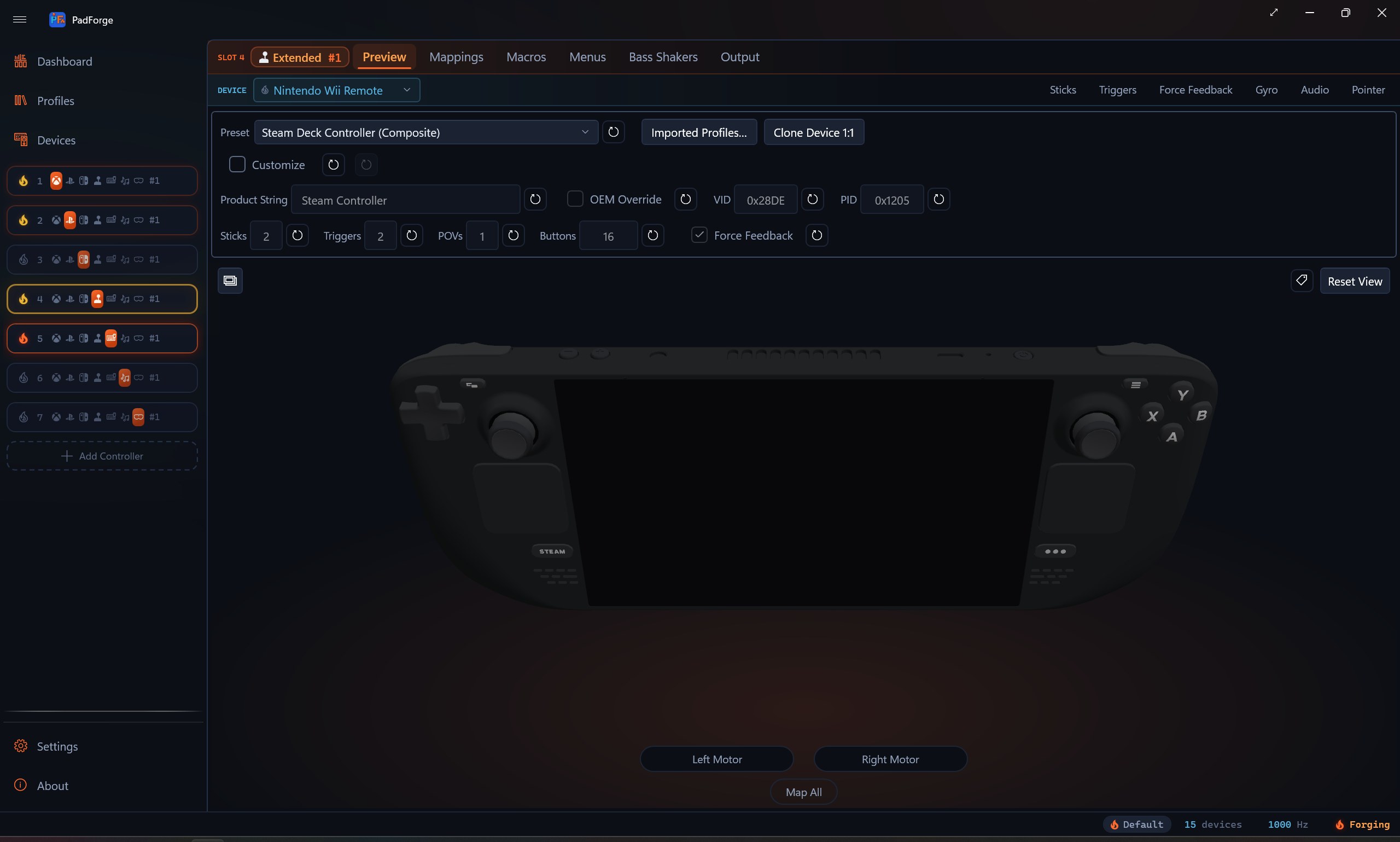
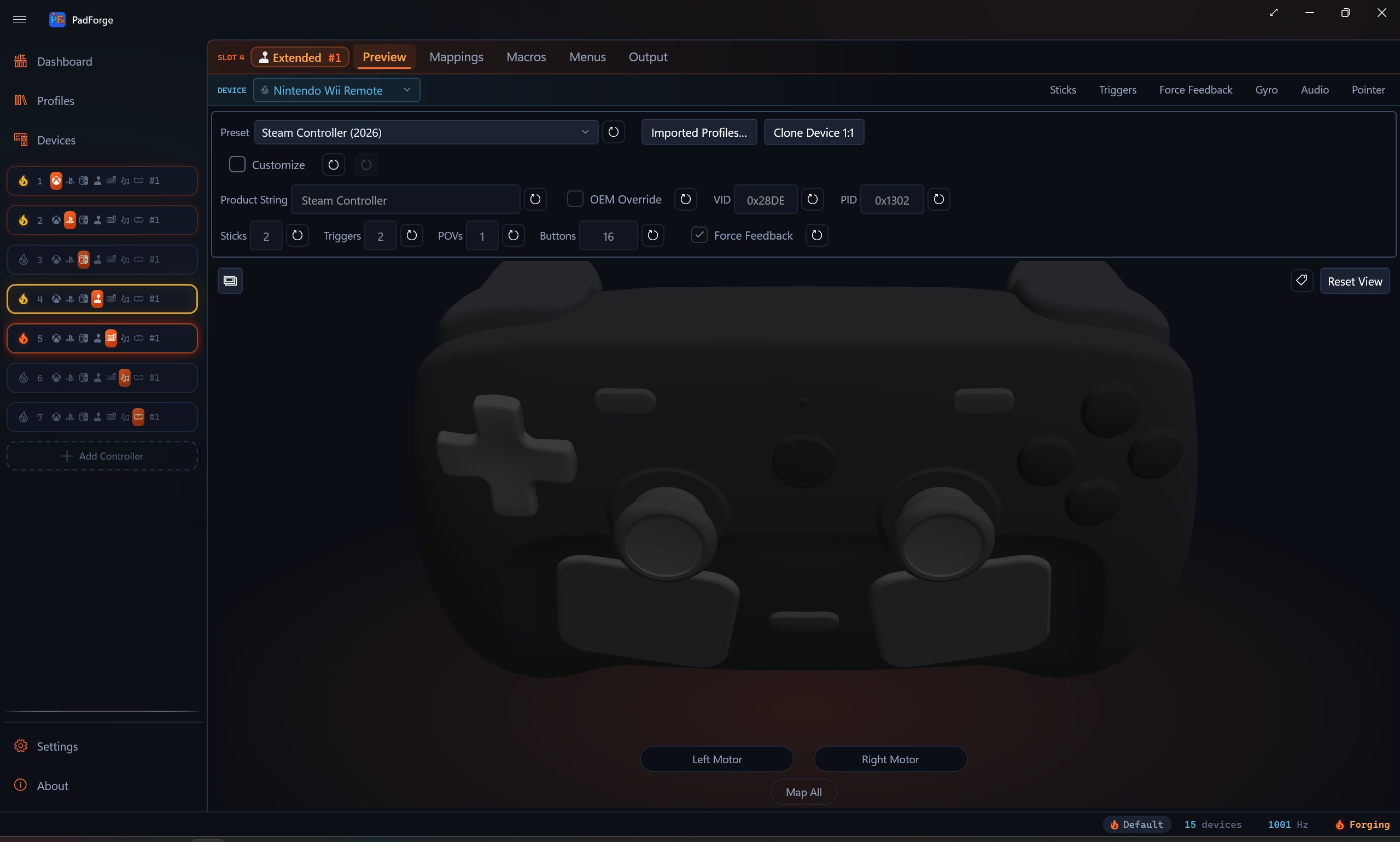
3D and 2D visualization

Native art per profile. Xbox 360, Xbox One / Elite / Adaptive, Xbox Series, DualShock 4, DualSense. Click any button in 3D to record its mapping.

Six deadzone shapes

Scaled Radial, Radial, Axial, Hybrid, Sloped Scaled Axial, Sloped Axial. Per-axis anti-deadzone. Custom sensitivity curves with unlimited draggable points.

Force feedback both ways

Full rumble passthrough. HID PID 1.0 for wheels and joysticks. Audio bass rumble synthesized from system audio. Constant force vector.

Adaptive triggers and lightbar

Seven DualSense trigger modes plus a one-click GameCube preset. Fifteen lightbar modes including audio-pulse, audio-band, Strobe, and Battery.

Impulse triggers

Xbox impulse trigger passthrough on the assigned physical pad. Same data routes to DualSense as Adaptive Trigger Vibration. Audio-bass trigger rumble.

Macros with action sequences

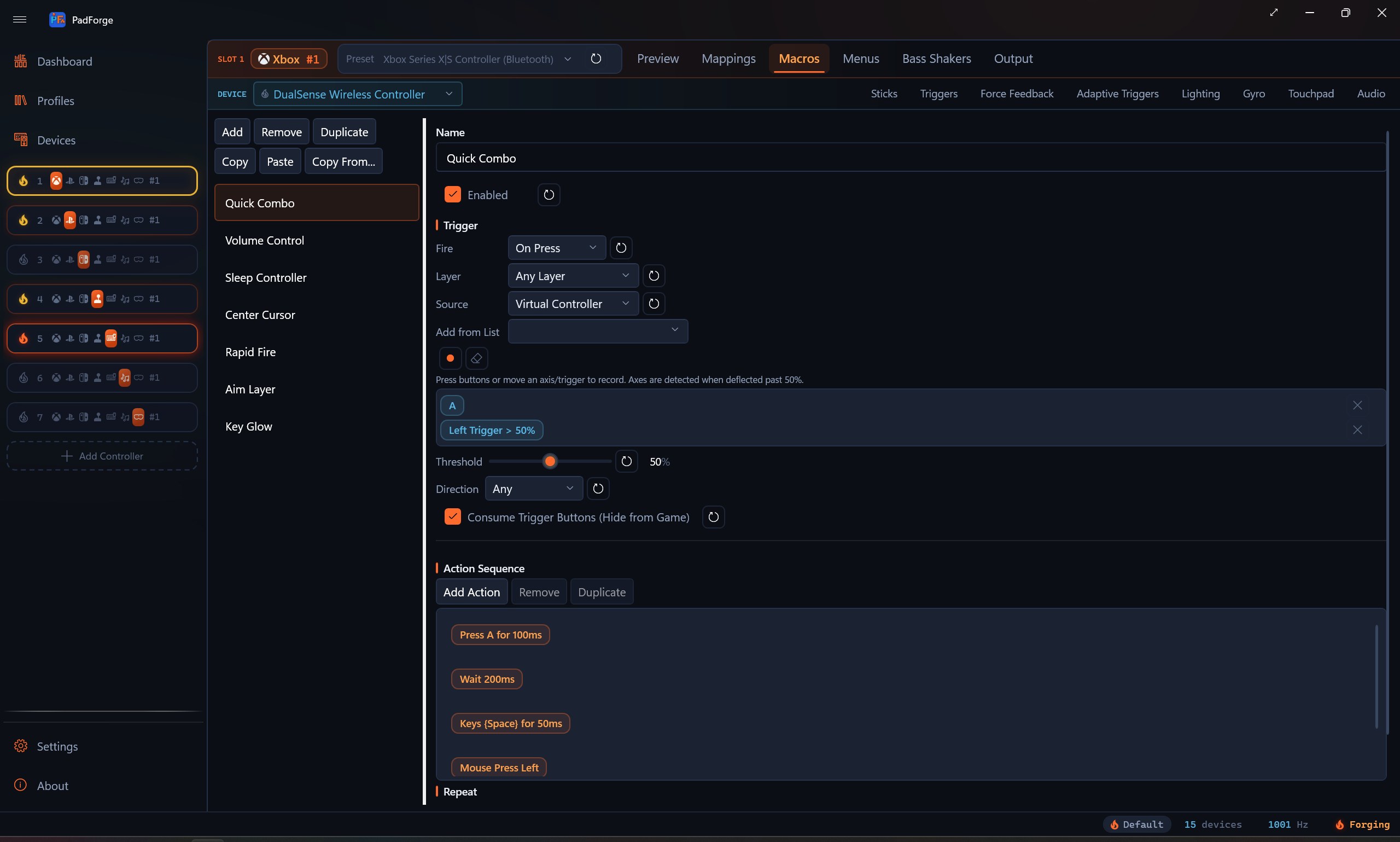
Combo triggers and Custom Expression formulas. Key presses, mouse, scroll, volume, lightbar, rumble, and axis actions that latch, release, and scale. Twelve fire modes, from On Press through Double, Triple, Long, and Short Press to Toggle and Turbo, plus a per-macro shift-layer scope. Cursor actions to recenter the mouse, pin it at a point, or fence it inside a rectangle. Duplicate a macro in place, copy and paste between virtual controllers, or pull every macro from another in one step.

Per-app profiles

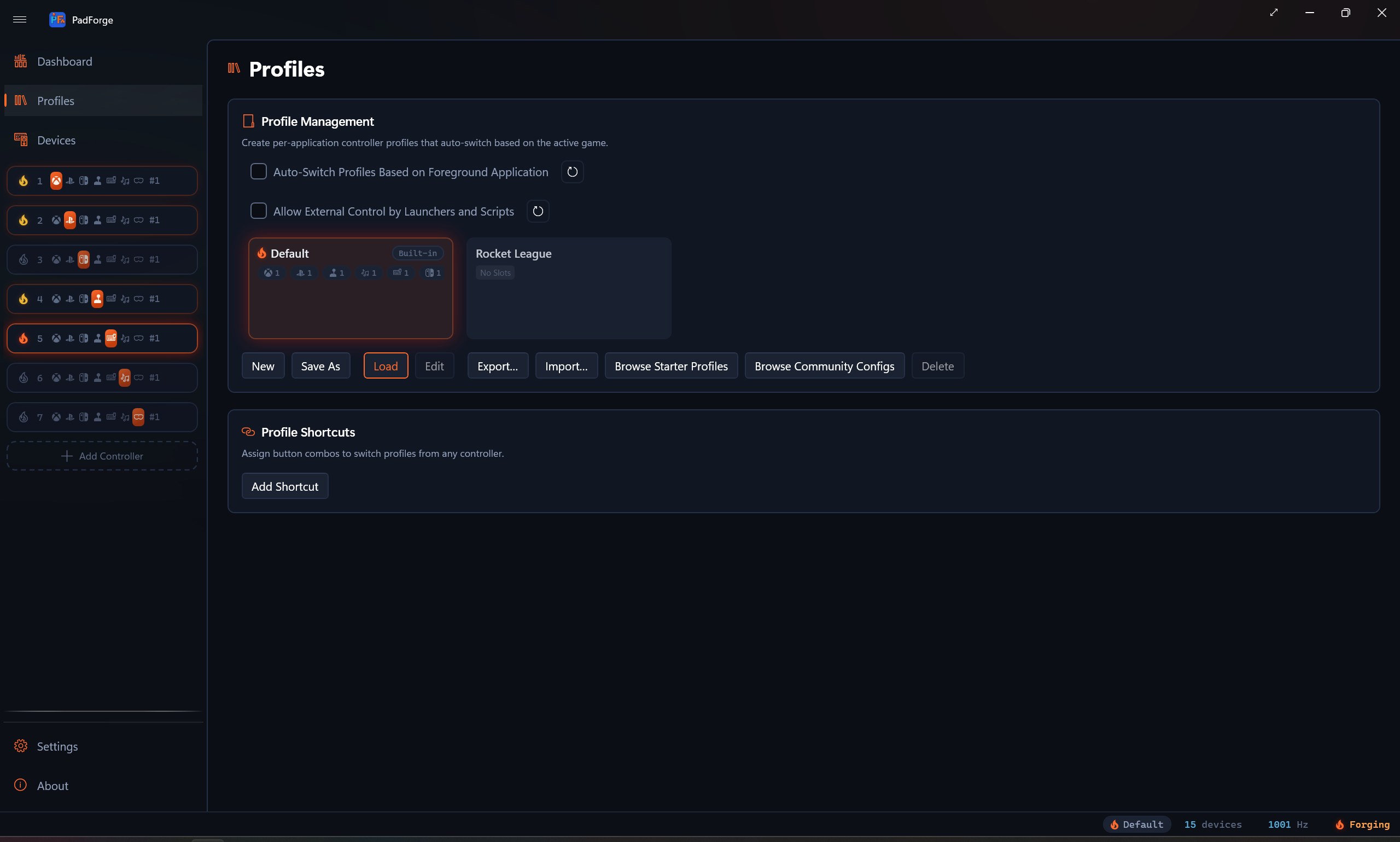
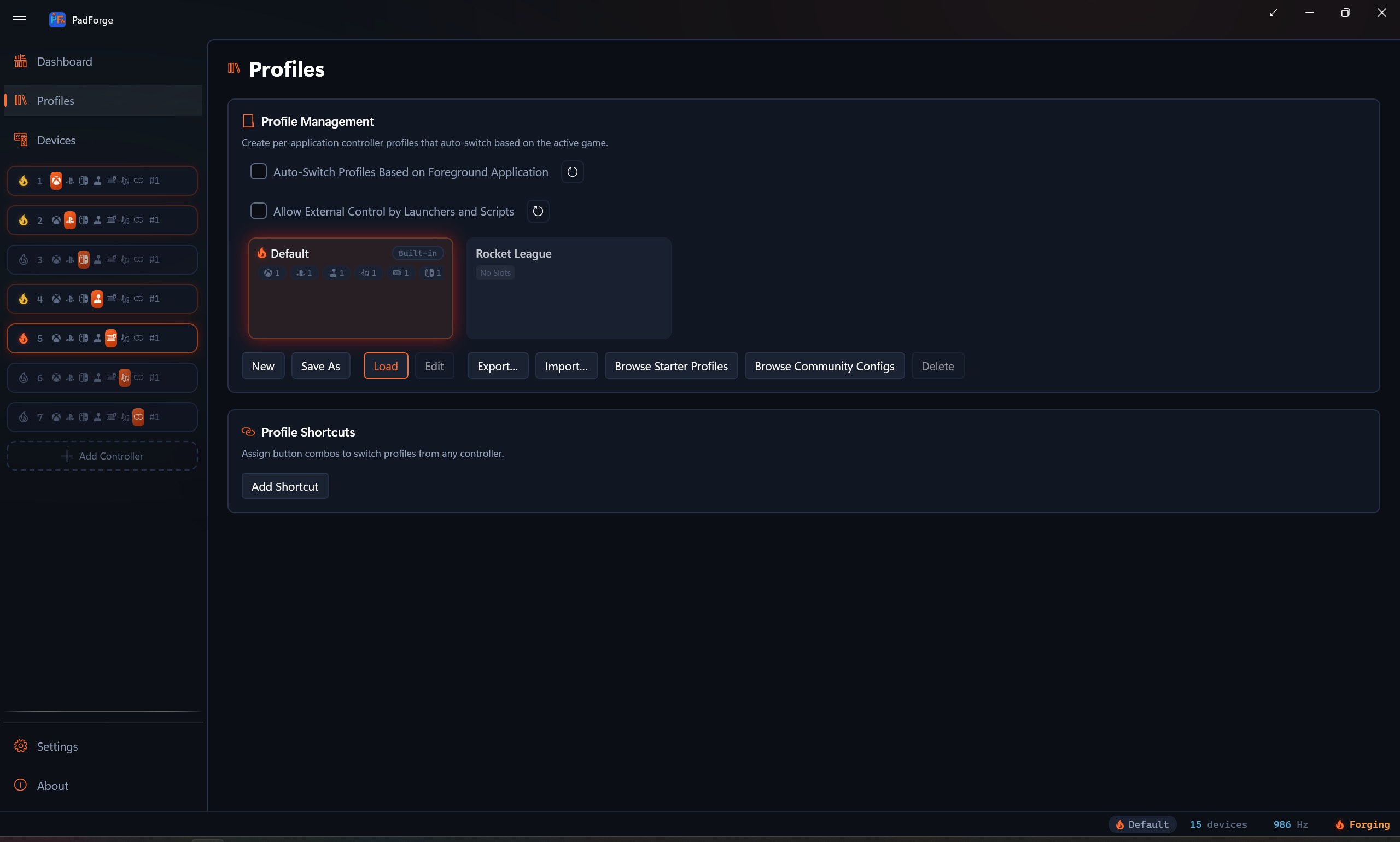
Watches the foreground window. Switches when a matching app takes focus. Win11-style flyout confirms.

DSU motion server

Gyro and accel on UDP 26760. Cemu, Dolphin, Yuzu, Ryujinx all read it. Plug-and-play for any emulator that speaks Cemuhook.

MIDI virtual output

Channel 1-16. CC for axes, Note On/Off for buttons. Real Windows MIDI Services endpoint. No loopMIDI bridge.

1000 Hz polling

Sub-millisecond jitter via high-resolution waitable timers. Bit-perfect axis passthrough at defaults. Built on SDL3.

Hide physical controllers

HidHide driver-level cloak. Per-device toggles auto-enable for gamepads. Cloak persists across launches.

Wii controllers

In-app Bluetooth pairing. Press SYNC to bond once and reconnect on any button, or hold 1 and 2 for a temporary pairing. Wii Remote, Remote plus Nunchuk, Classic Controller, and Wii U Pro Controller map as pads. Accelerometer and Motion Plus gyro feed the motion pipeline. The IR camera drives an on-screen pointer, and a Balance Board reports weight and lean.

NFC tag triggers

Read NFC tags through a PC/SC contactless reader and fire a macro on a tap. Register and name each tag from the Devices page. Every tag is its own trigger, next to an Any NFC Tag trigger. Media keys map too, and wireless pads show battery charge with an optional idle-disconnect timer.

See it

Screenshots.

Free means free.

No installer. Single EXE. Windows 10 or 11, 64-bit.
PadForge will never become paid, freemium, or Patreon early-access paywalled.

PadForge installs HIDMaestro on first run. HIDMaestro is the driver that creates virtual controllers. When you add a slot, HIDMaestro spins up a real HID device matching the controller shape you picked. The device disappears when you delete the slot.

Two more drivers are optional. PadForge offers to install each only when you need its feature:

  • HidHide. Hides your physical controller so games only see the virtual one. Install it when a game sees both at once.
  • Windows MIDI Services. Required for MIDI input and the MIDI virtual controller type. Needs Windows 11 24H2 or later.

FAQ

Questions people ask.

Will PadForge get my account banned in online games?

PadForge is a user-mode app running outside the game process. Games see PadForge's virtual controller as a real HID device, the same way they see any commercial gamepad. Nothing is injected into the game, no game memory is read or written, no anti-cheat hook is touched.

Anti-cheat policies still vary per game. The same caveat that applies to any third-party input remapper (Steam Input, reWASD, x360ce, controller-companion software) applies to PadForge. Check the game's specific anti-cheat policy if you play competitively.

Is PadForge actually free, or is the free version crippled?

PadForge is fully free. No tiered version, no feature paywall, no time-limited trial. The entire feature set ships in one EXE.

It's licensed CC BY-NC-SA 4.0. Source is on GitHub. Anyone can build it from source. The only thing PadForge asks for is that you donate to a charity if you feel like donating.

Which controllers work as a source device?

Anything Windows recognises as a HID input device. Xbox 360, Xbox One, Xbox Elite, Xbox Series, DualShock 3 (USB or in-app Bluetooth pairing), DualShock 4, DualSense, DualSense Edge, Switch Pro, 2026 Steam Controller, the Wii Remote and its Nunchuk, Classic Controller, and Wii U Pro Controller (paired in-app), any DirectInput joystick / flight stick / racing wheel / HOTAS / pedals, keyboards, mice, and even Windows Precision Touchpads.

For unrecognised gamepads, the Devices page has a one-click "Submit Mapping" button that opens a pre-filled GitHub issue with the device's VID:PID and SDL GUID. Once merged, the mapping ships to everyone on the next release.

How do I pair a Wii controller?

Open the Devices page and click Pair, next to Refresh. Pick Nintendo Wii in the dialog, then press the red SYNC button under the battery cover. PadForge finds the controller and bonds it, so it reconnects on its own the next time you press a button. To pair for one session without bonding, tick Temporary Pairing and hold 1 and 2 instead.

PadForge runs this itself because a Wii controller's pairing PIN is six raw bytes that depend on which sync button you press, not text you can type into the Windows prompt. You need a Bluetooth radio. The Bluetooth stack writes the link key, so nothing touches the registry.

Does PadForge run when PadForge isn't running?

HIDMaestro (the virtual-controller driver) stays loaded by Windows even when PadForge is closed, so already-created virtual controllers keep their device identity across launches. But the input pipeline, reading your physical pad and forwarding it, only runs while PadForge is open. Close PadForge and the virtual controllers stop receiving input.

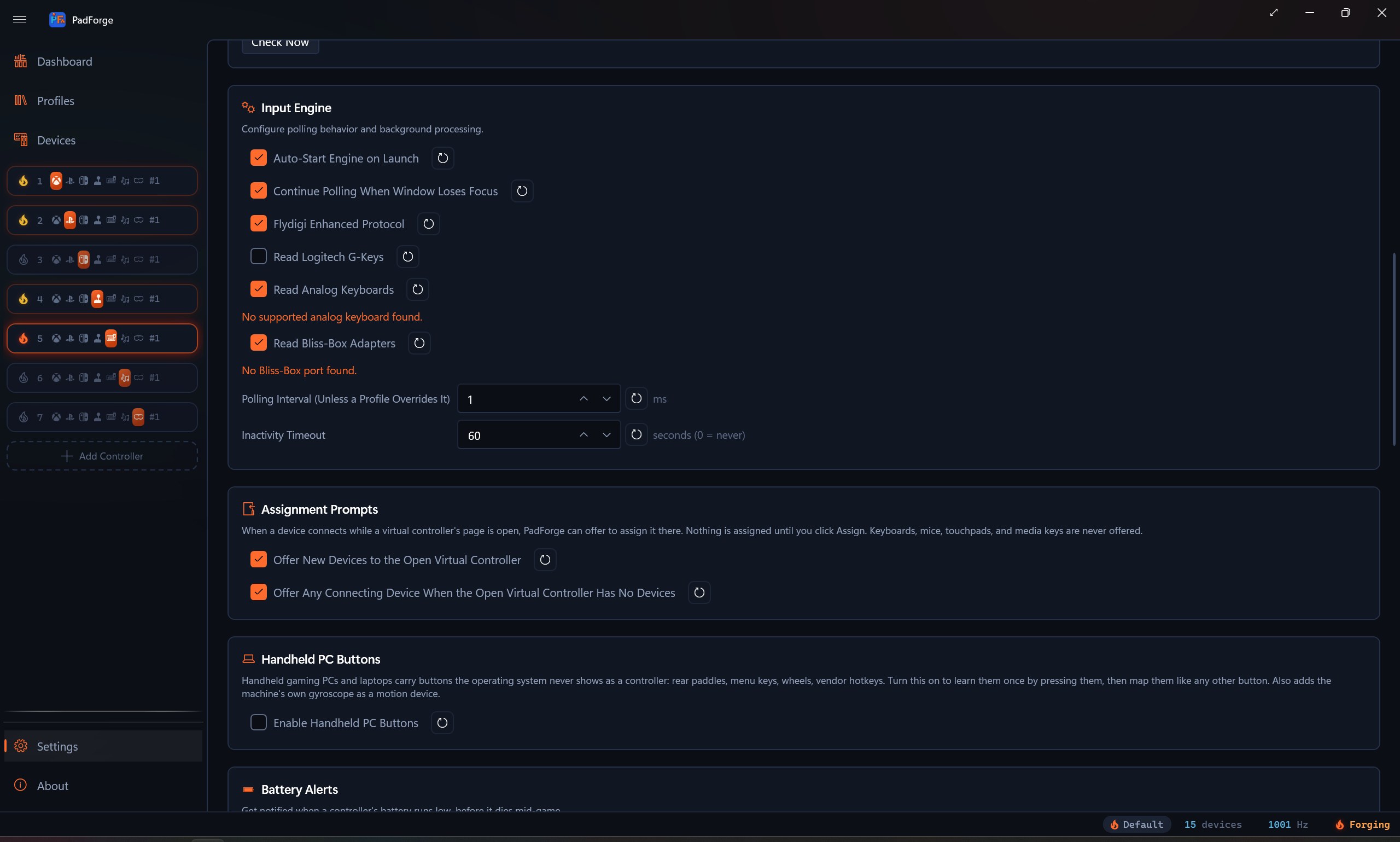
Enable Start at login, Start minimized, and Minimize to system tray in Settings to make PadForge a persistent background service. Combined, those three give a fully silent setup that wakes when you sign in.

The game still sees my physical controller alongside the virtual one. What now?

Install HidHide from Settings → Drivers. It's a driver-level cloak that hides the physical device from every non-whitelisted process while leaving PadForge able to read it. The per-device toggle on the Devices page enables it for that controller.

HidHide is optional because not everyone needs it. Some games handle duplicate controllers fine. Some apps you want to keep seeing the physical pad (streaming overlays, controller-test tools). Install when you need the cloak.

Do I need an internet connection?

No. PadForge is local-only. It does not phone home, does not sync to a cloud, does not require an account, and never talks to a license server. Your settings live in PadForge.xml next to the EXE. Back that file up to keep your profiles.

Can I use a phone or tablet as a controller?

Yes. Enable the Web Controller on the Dashboard, open the URL it shows from any browser on the same Wi-Fi network (no app to install), pick an Xbox 360 layout, a DualShock 4 layout, or a Touchpad-only layout, and start playing. The browser sends input, PadForge feeds it into the slot you assign it to, and rumble feeds back to the phone through the browser's Vibration API where supported.

What does PadForge need to run?

Windows 10 or 11, 64-bit. The .NET 10 Desktop Runtime is bundled in the single-file release so there is nothing else to install. HIDMaestro auto-installs on first launch. HidHide and Windows MIDI Services are optional and install from Settings when you need them.

For best results: a recent Windows 11 build (24H2 or newer). MIDI input and the MIDI virtual controller type need Windows MIDI Services, which is Windows 11 24H2 (build 26100) and later.

I have a controller PadForge doesn't recognise. Can I add it?

Yes, in two ways. The fast way: turn on Force Raw Joystick Mode on the device card. PadForge stops trying to interpret it as a known gamepad layout and exposes every raw button and axis directly. Map them by hand on the Mappings tab.

The better way: click the Submit Mapping button on the device's card. Your browser opens a GitHub issue pre-filled with everything PadForge can read about the device. You fill in which raw input is which named button, and once merged the mapping ships in gamecontrollerdb_padforge.txt for every PadForge user.

Can I share a controller across several PCs?

Yes, across as many as you like. Remote Link pairs PadForge PCs on the same local network. A controller, wheel, or HOTAS plugged into one PC shows up in the others' Devices lists, ready to assign to a slot and map like any local controller. One PC can be linked to several at once, both directions, and the feedback returns to the real hardware: rumble, force feedback, adaptive triggers, lightbar, player LEDs, and the controller speaker all play on the physical device wherever it is plugged in.

Pairing is a one-time six-digit code you match on both screens. After that, trusted PCs reconnect on their own. A gamepad-only switch keeps a paired PC from reaching your keyboard, mouse, and macros. Remote Link finds PCs on your local network on its own. To play across the internet, put the PCs on one virtual network with a VPN like ZeroTier and connect by address.

How does PadForge compare to reWASD, Steam Input, or DS4Windows?

See the comparison table above. reWASD is the closest paid alternative at $9.99 and up. Where PadForge takes a different approach: DualSense virtual output, Extended virtual joysticks through 225+ HIDMaestro profiles, MIDI virtual output, a built-in phone-as-controller server, and gyro that matches Steam Input's reference-frame model (Local, Player, World) with real-world calibration and cross-device Aim Engage. DS4Windows, x360ce, and XOutput each leave one or more of those out.